WooCommerce
Send WooCommerce SMS from your own number, without Twilio
Text your WooCommerce customers about their orders from your own Android phone and number, with a free plugin: order statuses, tracking and new-order alerts.
By NARBOWEB SRL, the team behind SMSTunnel Published 8 min read
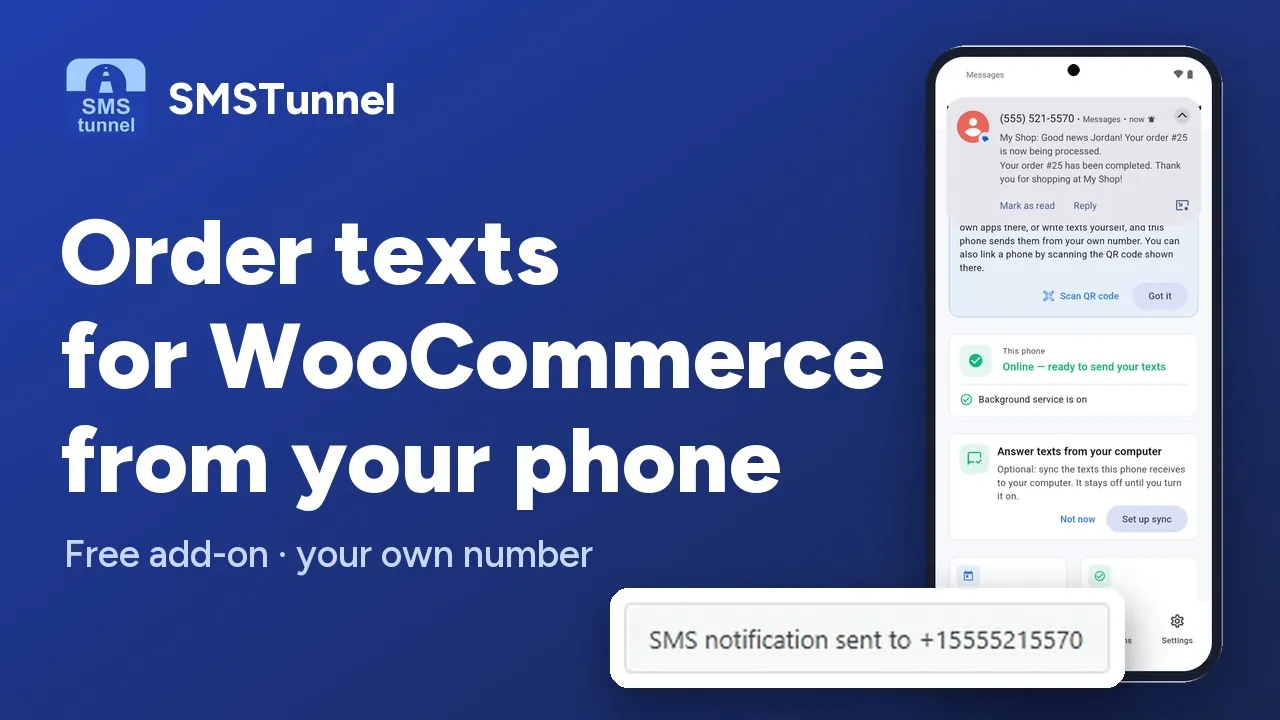 Play the video: WooCommerce SMS order notifications from your own phone (1:35)
A short text is often the fastest way to tell customers that their order went through, that it has shipped, or that something needs their attention. The usual way to send them is an SMS API provider such as Twilio: you rent a number from the provider and pay for every text, and texting US customers from a local number also means registering it first (A2P 10DLC).
For many small shops there is a simpler route. Your WooCommerce store hands each order text to your SMSTunnel account, and the SMSTunnel app on your own Android phone sends it from your own number, on your own SIM and mobile plan. Customers see a number they can recognize and reply to, and SMSTunnel charges no per-message fees.
This guide sets it up from scratch with two free plugins from WordPress.org: the SMSTunnel core plugin, which links your site to your phone, and SMSTunnel for WooCommerce, which adds the order texts.
How it works
- Something happens in your shop: a customer places an order, or you move an order to Completed.
- SMSTunnel for WooCommerce writes the text from your template and hands it to your SMSTunnel account.
- The SMSTunnel app on your phone sends it as a normal SMS from your number.
Each text goes to one number: the billing phone of that order. If your phone is offline for a while, the texts wait in your account and go out when it is back online, for up to 3 days.
What you need
- WordPress 5.0 or newer, PHP 7.4 or newer and WooCommerce 5.0 or newer
- An Android phone (Android 7.0 or newer) with a SIM card, which stays on and online
- The SMSTunnel app from Google Play, signed in to your SMSTunnel account (the Free plan needs no credit card)
- The SMSTunnel core plugin and SMSTunnel for WooCommerce, both free on WordPress.org
Step 1: Link your site to your phone
Install the core plugin first. In your WordPress admin, go to Plugins → Add New, search for SMSTunnel, click Install Now and then Activate.
Then open SMSTunnel → Quick Setup. In the SMSTunnel app on your phone, open Connections → Link with QR code, scan the code and approve the connection on the phone. You can remove that connection in the app (Connections) at any time.
If you prefer a key, go to SMSTunnel → Settings and use Connect with API Key, with a key you create in your dashboard under Apps → Add an app.
Step 2: Install SMSTunnel for WooCommerce
Go to Plugins → Add New again, search for SMSTunnel for WooCommerce, click Install Now and Activate. Its settings live in WooCommerce → Settings → SMS.
The add-on works with WooCommerce’s High-Performance Order Storage (HPOS), and with both the Checkout block and the classic checkout.
Step 3: Choose which order statuses send a text
The SMS tab has a switch for each text to the customer:
- New Order (Pending): the order still waits for payment, for example while the customer pays on another site
- Order Processing, Order Completed, Order On Hold, Order Cancelled and Order Refunded: sent each time an order moves to that status
- Shipment Tracking: a text with the tracking number (more on that below)
New Order (Pending), Order Processing and Order Completed are on by default, and the add-on follows the tab from the start, even before you save it once. So check the tab right after you activate the plugin.
A customer who places an order gets one text at checkout, not two. If the order still waits for payment, it is the New Order (Pending) text. Otherwise it is the text for the status the order has at that moment, such as Order Processing for cash on delivery.

This screenshot comes from an earlier version, which still had a WooCommerce 2FA checkbox at the top. That checkbox did nothing and was removed in version 1.0.5: sign-in codes for the My Account login come from the core plugin (see the questions below).
Step 4: Write your messages
Each text has its own template under SMS Message Templates, with these placeholders:
| Placeholder | What it becomes |
|---|---|
{order_id} | The order number |
{order_total} | The order total, with the currency |
{order_status} | The current status of the order |
{customer_name} | The customer’s full name |
{customer_first_name} | The customer’s first name |
{site_name} | Your site’s name |
{tracking_number} | The tracking number (Tracking Message only) |
{tracking_provider} | The shipping company (Tracking Message only) |
The default New Order Message reads: “Hi {customer_first_name}, thank you for your order #{order_id} ({order_total}) at {site_name}. We’ll process it soon!” The default Completed Message: “Your order #{order_id} has been completed. Thank you for shopping at {site_name}!”
Keep them short and useful, and in your customers’ language. A text that says what happened and what comes next works better than a long one.

Texts to you: new orders and low stock
The same tab has notifications for the shop itself. Put your own number in Admin Phone Number (one number, with + and the country code), then turn on:
- Notify Admin on New Order: a text to you once for every order placed at checkout, even when the customer’s text is off or the customer gave no phone number
- Low Stock Alert: a text when a product runs low or out of stock
Tracking numbers
The Shipment Tracking text goes out when you add a tracking number with the free Advanced Shipment Tracking plugin, once per tracking number. Other tracking plugins don’t tell other plugins when they add a number, so they aren’t supported directly.
Developers can send the tracking text from their own code by firing the action the add-on listens to:
do_action( 'woocommerce_shipment_tracking_number_added', $order_id, $tracking_number, $tracking_provider );Ask for numbers in international format
Customer texts go to the order’s billing phone, exactly as the customer typed it. The add-on doesn’t check or complete the number, and a number without + and the country code can reach the wrong country. Orders without a phone number get no text.
So say it clearly at checkout, in the field’s label or a short note: the number should start with + and the country code, like +44 7700 900123.
On the order page, a Send SMS box sends a one-off text to the customer, and every text sent on a status change is recorded in the order notes.
How many texts will your shop send?
Count about two or three texts per order (one at checkout, one when it’s completed, maybe one with the tracking number), plus one to you if you turned on the new order alert.
- Free: 25 texts a day and 500 a month, sent exactly as you wrote them. Your site can send up to 25 more a day, each ending with a short “free by smstunnel.io” line.
- Starter, $9 a month: 300 texts a day and 5,000 a month.
- Standard, $19 a month: 2,000 texts a day and 30,000 a month.
A shop with a few orders a day can stay on Free. One with ten orders a day and three texts per order sends about 30 texts a day, which fits Starter. Prices are before tax, and yearly plans cost ten months. The texts themselves go out over your own mobile plan, so your carrier’s SMS rates or allowance apply. Check that your plan allows this kind of use, and see the pricing page or our cost comparison of your own SIM and an SMS API.
When Twilio is still the better fit
Your own phone works well for the texts a phone sends comfortably: order updates, reminders and sign-in codes. An SMS API provider fits better if you send at high volumes, need short codes or a sender name instead of a number, need registered US 10DLC numbers, or text customers in many countries.
When we compared them in November 2026, Twilio’s US pricing listed $0.0083 per text segment plus carrier fees, and $1.15 a month for a local number, plus the registration fees for US local numbers. The full side-by-side is on SMSTunnel vs Twilio, and nothing stops you from using both.
Common questions
Can customers reply?
Yes. The texts come from your own number, so replies reach your phone like any other text. If you turn on syncing of received texts in the app, you can also read and answer them on your computer.
Can I add SMS sign-in codes to the My Account login?
Yes, with the core plugin: turn on WordPress Login 2FA in SMSTunnel → Settings, and it covers the WooCommerce My Account login too. Our guide to SMS sign-in codes without Twilio covers it, with other platforms.
Does it work with subscription plugins?
The status texts follow any WooCommerce order status change, including the ones that subscription plugins make.
Can the order texts be encrypted?
Yes, optionally. Turn on end-to-end encryption in the core plugin’s settings, and your site encrypts each text for your phone before it leaves WordPress, so SMSTunnel can’t read the words. An encrypted text counts toward your daily allowance and is refused past it, because it can’t carry the free line. See end-to-end encrypted SMS for what is and isn’t encrypted.
See also
More from the blog
Try it with your own phone
Install the Android app, sign in, and your own software can send its first text in a few minutes. The Free plan needs no credit card.