WordPress
SMS for WordPress forms: Contact Form 7, WPForms, Gravity Forms, Fluent Forms and Forminator
Get a text for each Contact Form 7, WPForms, Gravity Forms, Fluent Forms or Forminator submission, and confirm to the visitor, from your own phone and number.
By NARBOWEB SRL, the team behind SMSTunnel Published 7 min read
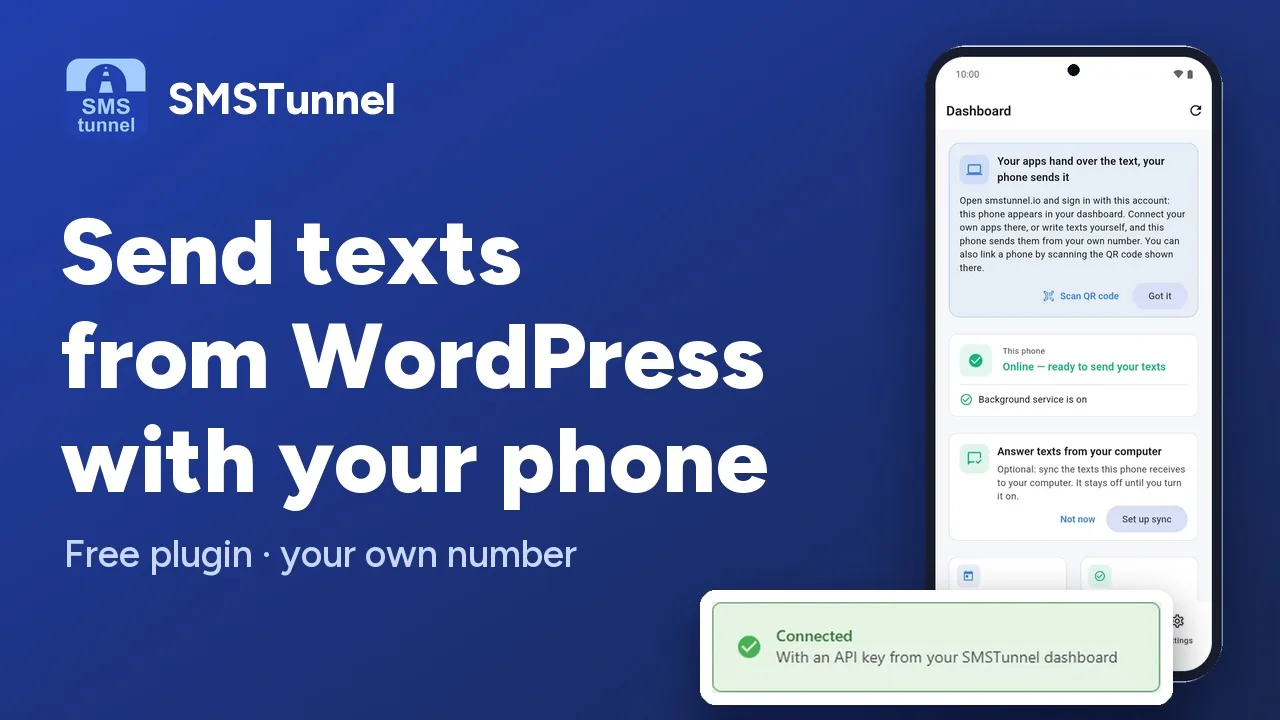 Play the video: Send texts from WordPress through your own phone (1:23)
A form on your WordPress site is often the first message a new customer sends you: a quote request, a booking, a question about a product. Most form plugins email it to you, and the email waits in an inbox until someone checks. A text lands on the phone that is already in your pocket.
The person who filled in the form wants to know it arrived, too. A short confirmation text, from a number they can call or reply to, does that better than a “thank you” page they close right away.
SMSTunnel does both for five form plugins: Contact Form 7, WPForms, Gravity Forms, Fluent Forms and Forminator. Your site hands each text to your SMSTunnel account, and the SMSTunnel app on your own Android phone sends it from your own number. This guide covers the setup common to all five, then each plugin’s own settings.
Two texts for every form
Every integration below offers the same two texts, and you can use either one or both:
- A text to you or your team when someone submits the form. You can list several numbers; each number gets its own text. Put the answers in it, such as the person’s name, phone and message.
- A confirmation to the person who filled in the form, at the number they entered in it. The add-ons call it SMS (2) or the autoresponder.
The texts go out after each submission that passes the form’s own checks. If your phone is offline for a while, they wait and go out when it is back.
First: link your site to your phone
All five need the free SMSTunnel core plugin, linked to your phone:
- Install the SMSTunnel app from Google Play on your Android phone and sign in.
- In WordPress, go to Plugins → Add New, search for SMSTunnel, then Install Now and Activate.
- Open SMSTunnel → Quick Setup. In the app, open Connections → Link with QR code, scan the code and approve the connection on your phone.
You can also use Connect with API Key in SMSTunnel → Settings, as in the video above. Send yourself a test text from SMSTunnel → Send SMS before you go on: if it arrives, the rest is only form settings. More on the core plugin, including SMS sign-in codes for WordPress logins, is on the core plugin page.
Contact Form 7
Install SMSTunnel for CF7 from Plugins → Add New. Then go to Contact → Contact Forms, edit a form and open its SMS tab (shown to administrators).
- Tick Send SMS notification when this form is submitted, add your number(s) under Recipient Phone Number(s), separated by commas, and write the Message Body.
- For the confirmation, tick Use SMS (2). Its Recipient Phone Number is
[your-phone]by default: the visitor’s own phone field. Change the tag if your phone field has another name.
The message can use any field of the form as a mail-tag, like [your-name] or [your-message], plus [_date], [_time], [_site_title], [_site_url], [_post_title] and [_post_url]. Other special mail-tags are not replaced. A useful text to yourself:
New contact from [your-name]: [your-message] - Reply to: [your-phone]
All the details are on the Contact Form 7 page.
WPForms
Install SMSTunnel for WPForms. It is made for WPForms Lite, the free plugin, so you don’t need WPForms Pro. Open the form in the WPForms builder and go to Settings → SMS.
- Turn on Enable SMS notification when form is submitted, add the Recipient Phone Number(s) and edit the Message Body. By default it reads “New form submission from
{field_id="1"}”, followed by every answer with{all_fields}. - Turn on Enable SMS (2) Autoresponder, put the phone field’s smart tag in Recipient Phone Number, like
{field_id="3"}, and write the Confirmation Message.
Besides {field_id="X"} and {all_fields}, the smart tags {site_name}, {site_url}, {admin_email}, {user_ip}, {entry_id} and {date format="m/d/Y"} work. Some other WPForms smart tags, like {form_name} and {page_title}, are not replaced. See the WPForms page.
Gravity Forms
Install SMSTunnel Notifications for Gravity Forms, edit a form and open Settings → SMS. Each form has its own SMS settings:
- Enable sends a text when the form is submitted, to the Recipient Phone Number(s). A merge tag works there too, like
{Phone:5}. - The Message Body starts as “New form submission:” followed by
{all_fields}. Every Gravity Forms merge tag works, like{Name (First):1.3}or{entry_id}. - SMS (2) - Autoresponder has its own Enable box, one Recipient Phone Number and a Confirmation Message.
Click Save SMS Settings when you’re done. There is no conditional logic: the texts go out after every submission. More on the Gravity Forms page.

Fluent Forms: built into SMSTunnel
For Fluent Forms you don’t install anything else: since version 1.0.13, the core plugin adds its texts as soon as Fluent Forms is active, and it works with the free version.
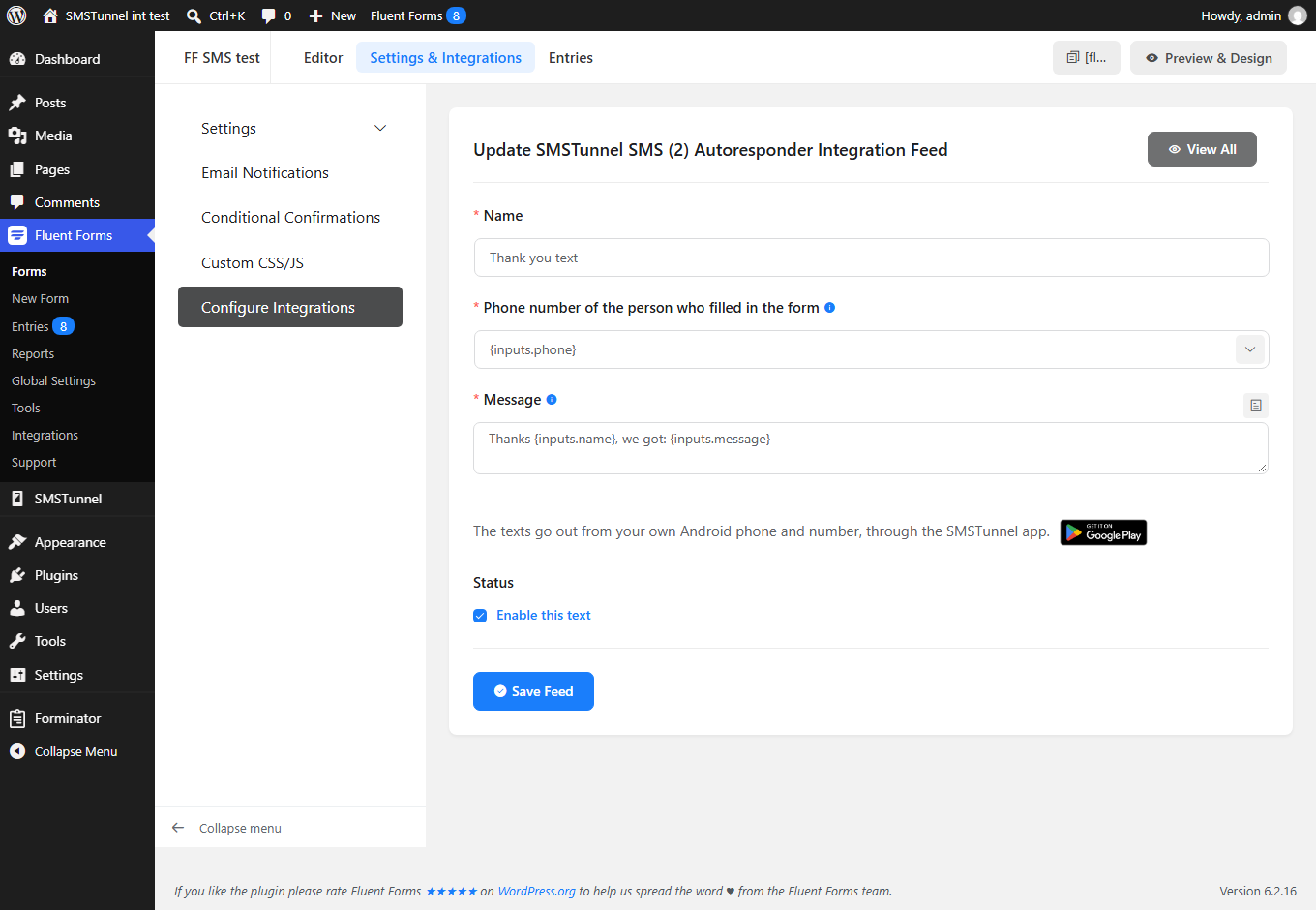
Open your form and go to Settings & Integrations → Configure Integrations → Add New Integration. Pick SMSTunnel SMS (the text to you) or SMSTunnel SMS (2) Autoresponder (the confirmation). Give it a name, enter the numbers or pick the form’s phone field, like {inputs.phone}, write the message and click Save Feed.
Use the smartcodes next to the message, like {inputs.name}; {all_data} adds every answer as “Label: value”, one per line. Each text has an Enable this text switch, and you can switch off SMSTunnel texts for all forms in Fluent Forms → Integrations. See the Fluent Forms page.
Forminator: built in too
Forminator also works with the core plugin alone, free version included. Activate SMSTunnel once in Forminator → Integrations: find it under Available Apps, click + and Activate.
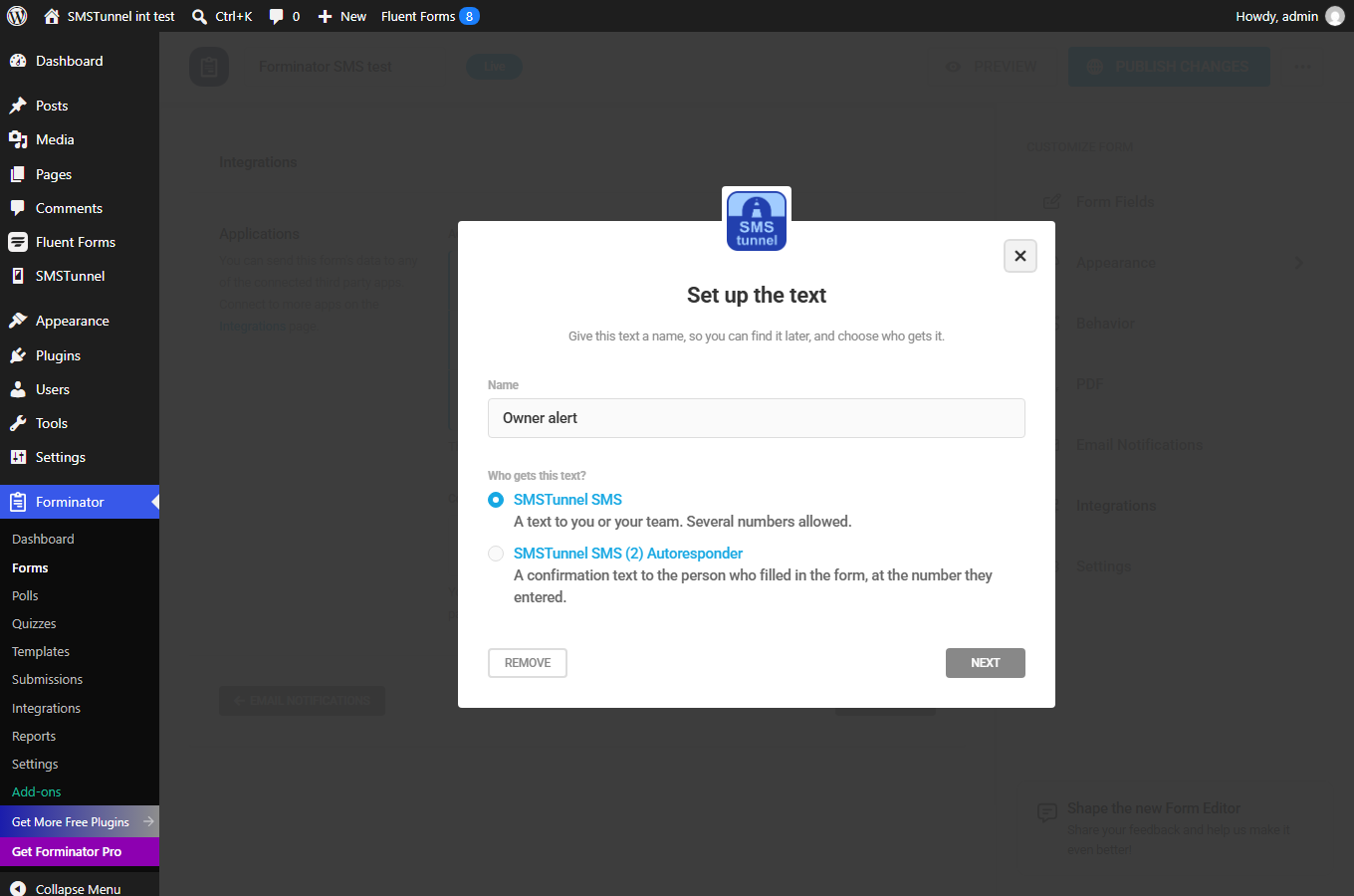
Then open your form, go to its Integrations tab and click + next to SMSTunnel. Give the text a name, choose Who gets this text? (SMSTunnel SMS or SMSTunnel SMS (2) Autoresponder), click Next, enter the numbers or pick the form’s phone field, write the message and Save. A form can have several texts.
The message uses the form’s field tags, like {name-1} or {textarea-1}, and {all_fields}, {all_non_empty_fields}, {form_name} and {submission_id}. In the form’s Phone field, set Validation to International. Details on the Forminator page.
Phone numbers: the one rule that matters
Every number needs + and the country code, like +44 7700 900123. Ask for that format in your form’s phone field, in the label or the placeholder, because the plugins don’t add the country code for you:
- Contact Form 7, WPForms and Gravity Forms accept spaces, skip a local number that starts with 0, and read a number without + as if it began with a country code.
- Fluent Forms and Forminator skip numbers without the country code.
- All of them always skip premium-rate numbers; Fluent Forms and Forminator skip short codes too.
Texts longer than 1,600 characters are cut, so {all_fields} on a very long form may not fit.
Other form plugins
SMSTunnel add-ons for Elementor Forms (the Elementor Pro Form widget), Ninja Forms and Formidable Forms are coming to WordPress.org. Each page says how to get one sooner. For a WooCommerce shop, see WooCommerce SMS from your own number.
Common questions
Do I pay per text?
Not to SMSTunnel. The texts go out from your own SIM, so your mobile plan’s SMS rates or allowance apply. The Free plan covers 25 texts a day and 500 a month as written, and paid plans start at $9 a month; see pricing.
Can I text everyone who ever filled in my form?
That’s not what these integrations do. Each submission sends its own texts: one to you or your team, and one confirmation to the person who just filled in the form. Text only people who expect to hear from you.
Can the texts be encrypted?
Yes, optionally. Turn on end-to-end encryption in the core plugin’s settings, and your site encrypts its texts for your phone before they leave WordPress. The end-to-end encryption guide explains what SMSTunnel can and can’t see.
See also
More from the blog
Try it with your own phone
Install the Android app, sign in, and your own software can send its first text in a few minutes. The Free plan needs no credit card.