Desktop app
The SMSTunnel desktop app is here: your texts on your computer
The free SMSTunnel app for Windows and Linux: write and read your texts on your computer, and your own Android phone sends them from your own number.
By NARBOWEB SRL, the team behind SMSTunnel Published Updated 5 min read
SMSTunnel for Windows and Linux is out, and it’s free. It brings your texts to your computer: you read and write them on a real keyboard, and your own Android phone sends each one from your own number. With sync on in the phone app, the texts your phone receives show up on your computer too, each with a notification.
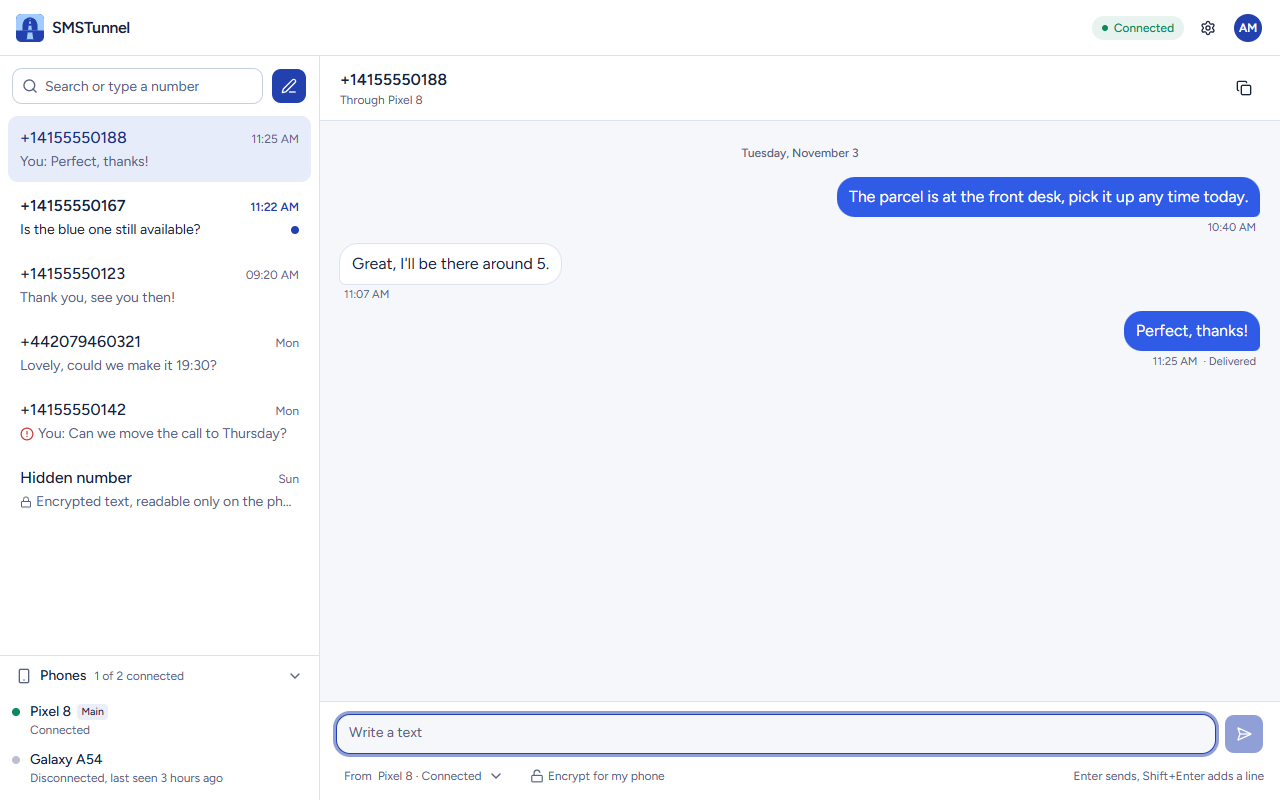
Until now, you wrote texts on your computer in the dashboard, in a browser tab. The desktop app does the same job as a real app: it stays in the tray, it can start with your computer, and it tells you when a text arrives.
What the desktop app does
- Your conversations, by number. With search, unread markers and each text’s status: sent, delivered or failed.
- Writing through your own phone. You type on your computer, and your phone sends the text from your number, so people see a number they know and can reply. One text goes to one number.
- Notifications. With sync on in the phone app, every text your phone receives shows up as a notification, with its text or just “New text”.
- The tray. Close the window and SMSTunnel keeps running, so new texts still show up. It can start with your computer.
- All your phones. See which ones are connected and choose which one sends. On a dual-SIM phone, a reply goes out from the SIM that received the text.
- Updates. It updates itself, and installs only updates signed by SMSTunnel.
- Light or dark, English or Romanian, like your computer.
How to start
- Install the SMSTunnel app on your Android phone from Google Play and sign in with your SMSTunnel account. Keep the phone online, with the app running: the phone is what sends your texts.
- Download the desktop app for Windows (10 or 11, 64-bit) or Linux (AppImage, .deb or .rpm), and install it.
- Open it and sign in with the same SMSTunnel account. Your phone shows up by itself.
- To see the texts your phone receives, turn on Settings › Received texts › Sync received texts in the phone app.
If you sign in with Google or Facebook, first set a password in the dashboard, under Account › Security, then sign in on your computer with your email.
On Windows, the simplest way is the Microsoft Store: it installs SMSTunnel without any warning and keeps it up to date. With the installer from the download page instead, the first time you open it Windows may say “Windows protected your PC”: that installer isn’t signed with a code-signing certificate yet. Click More info, then Run anyway. The download page has the details, and the checksums to check your download.
Your texts and your privacy
This is how texts travel today, in the desktop app as in the dashboard:
- Texts you write go through your SMSTunnel account to your phone, which sends them.
- Texts your phone receives reach your computer only while sync is on in the phone app. Only texts that arrive after you turn it on are synced, and your existing inbox is never read.
- In your account, your texts are stored in readable form, so the dashboard and the desktop app can show them. They aren’t end-to-end encrypted.
- One exception: the lock next to the text box, “Encrypt for my phone”, encrypts a text on your computer so that only your phone can read it. smstunnel.io still sees the number and the time.
- On your computer, the app keeps no texts. Your sign-in stays in your system’s credential store (Windows Credential Manager, or your Linux keyring), your password is never stored, and the app has no ads, analytics or tracking.
Coming: end-to-end private texts
We’re building end-to-end private texts for the desktop app, on every plan. Your messages will be readable only on your phone and on your computers: smstunnel.io will keep only encrypted copies it can’t read. We’ll write about it here when it’s ready.
The encryption is about SMSTunnel’s part of the journey. Before a text reaches your phone, and after your phone sends one, it travels over the mobile network like any other SMS.
Texts your own software sends already have their own option: end-to-end encryption, on every plan, where your software encrypts each text for your phone and SMSTunnel can’t read it. See end-to-end encrypted SMS.
The dashboard, and when to use which
The dashboard works in any browser and needs nothing installed, on a Mac too, until the macOS version comes. The desktop app adds notifications, the tray and starting with your computer. Both show the same account and the same texts, so use whichever is at hand.
Common questions
Is the desktop app free?
Yes, on Windows and on Linux. Your SMSTunnel plan sets how many texts you can send each day, and your mobile operator charges each text like any SMS from your phone.
Which systems does it run on?
Windows 10 and 11 (64-bit), from the Microsoft Store or with the installer from the download page, and 64-bit Linux: an AppImage, a .deb for Ubuntu, Debian and Mint, and an .rpm for Fedora and openSUSE. A macOS version comes later.
Can SMSTunnel read the texts I receive?
Synced texts are stored in your account in readable form, so the dashboard and the app can show them; they aren’t end-to-end encrypted yet. Our staff don’t look at your messages, except when that’s needed to answer a support request you send us or to investigate abuse. End-to-end private texts for the desktop app, which smstunnel.io won’t be able to read, are coming, on every plan.
Do I still need my phone?
Yes. The desktop app reads and sends texts through your own phone, and every text goes out from your own number. The phone must be online with the SMSTunnel app running; if it’s offline, a text waits and goes out when the phone is back, for up to 3 days.
See also
More from the blog
Try it with your own phone
Install the Android app, sign in, and your own software can send its first text in a few minutes. The Free plan needs no credit card.