How It Works
Link your phone once, then write your texts on the computer
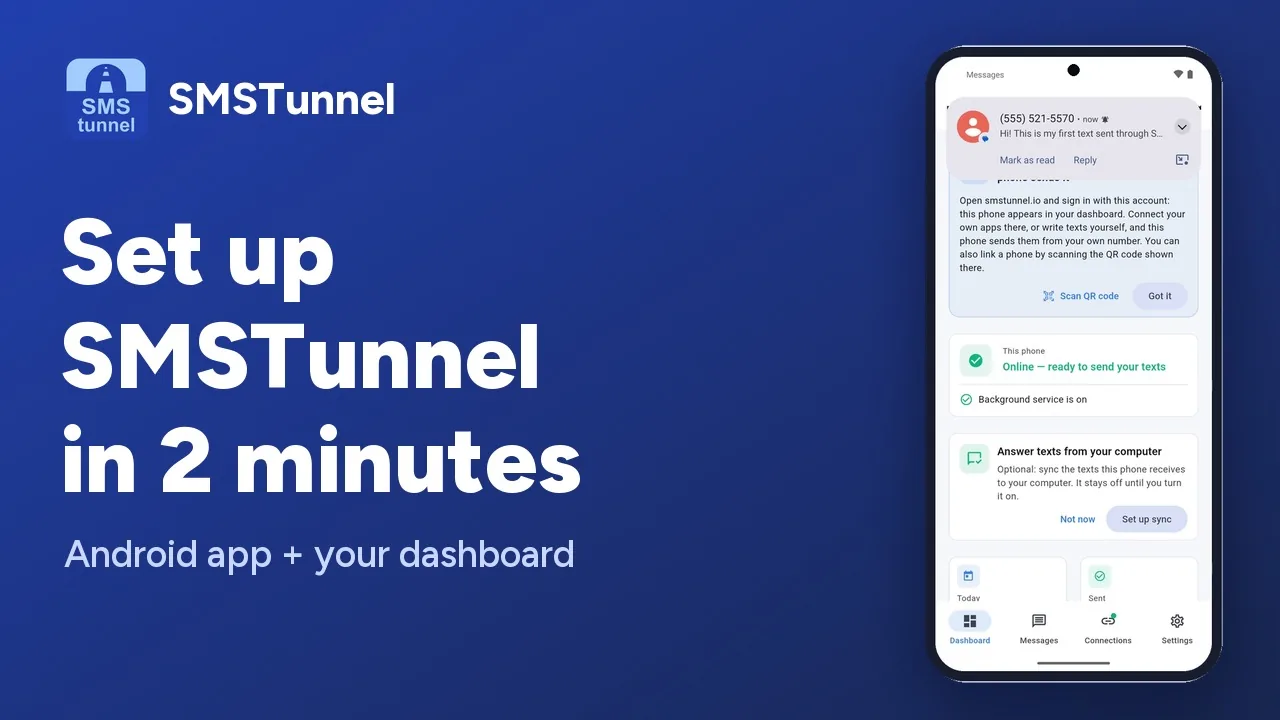 Play the video: Set up SMSTunnel on your Android phone in 2 minutes (1:34)
Install the App
Install SMSTunnel on your Android phone and sign in. The app keeps a secure connection to your own account, so the texts you write on your computer reach your phone right away.
Get it on Google Play →Link It to Your Computer
Open your dashboard at dashboard.smstunnel.io on your computer and sign in with the same account — the phone appears under Phones, and the two are linked. You can also link a phone with the QR code from Phones → Add phone (in the app: Connections → Link with QR code). Unlink anytime in the app (Connections), or sign out of the app.
Create Account →Write on Your Computer
Type a text in the dashboard, or in the free desktop app for Windows and Linux. Your phone sends it from your own number, on your own SIM — nobody has to touch the phone.
Setup Guide →Optional: Sync Replies
Turn on "Sync received texts" in the app and the texts your phone receives appear in your dashboard and in the desktop app, so you can answer from the computer.
Your Devices, Linked
Everything stays between your own devices and your own account.
About "Sync received texts"
- ✓Optional and off by default. The app explains it before asking you.
- ✓Only texts that arrive after you turn it on are synced. Your existing inbox is never read.
- ✓Only you can see them: in your dashboard, and through API keys you explicitly allow to read received messages. Websites and apps you link with a QR code or a standard API key cannot read them.
- ✓Turn it off anytime in the app — syncing stops immediately.
What the app does not do
- —It has no message composer: you write on your computer and the phone delivers.
- —It is not your default SMS app and does not replace it.
- —It does not upload your contacts, does not use your location and shows no ads.
- —It links nothing on its own: every link is created by you — by signing in to the app with your account, by scanning a QR code with your phone, or by creating an API key in your dashboard (or signing in from your own site's plugin).
Use It from Your Own Software Too
Your "computer" can also be a program you run. With a personal API key, your own website or tools hand a text to your linked phone, which sends it from your number.
# Hand a text to your linked phone
curl -X POST https://smstunnel.io/api/v1/sms/send \
  -H "X-API-Key: your_api_key" \
  -H "Content-Type: application/json" \
  -d '{
    "to": "+40712345678",
    "message": "Your order #1042 is ready for pickup."
  }'

# Response (shortened)
{
  "success": true,
  "messageId": "6720f1c2a9e4b3d5c8a1f001",
  "queued": false
}Alerts to Yourself
Get a text on your own number when something needs your attention: a server down, a water leak, a new booking.
Order Updates
Your shop texts customers about their order from your number, so they can simply reply.
Appointment Reminders
Reminders for people who booked with you, sent from your own phone.
Sign-in Codes
Two-factor sign-in codes for your own WordPress site or app.
No credit card required. Free plan available.