SMSTunnel for Shopify
Text order updates through your own phone, from your own number
Order texts from a number your customers can reply to
Shopify texts customers only an order confirmation, only in some countries, and only when they check out with a phone number instead of an email address. Shipping and other updates aren't sent by text. With the SMSTunnel app or with Shopify Flow, your store hands each update to your own Android phone, which sends it from your own SIM: customers see your number, can save it and reply, and you pay your own carrier, not a per-text fee to another provider.
The SMSTunnel app for Shopify
Order texts from your own Android phone, from your own number. Install the app in your store, link your phone with a QR code, choose the texts.
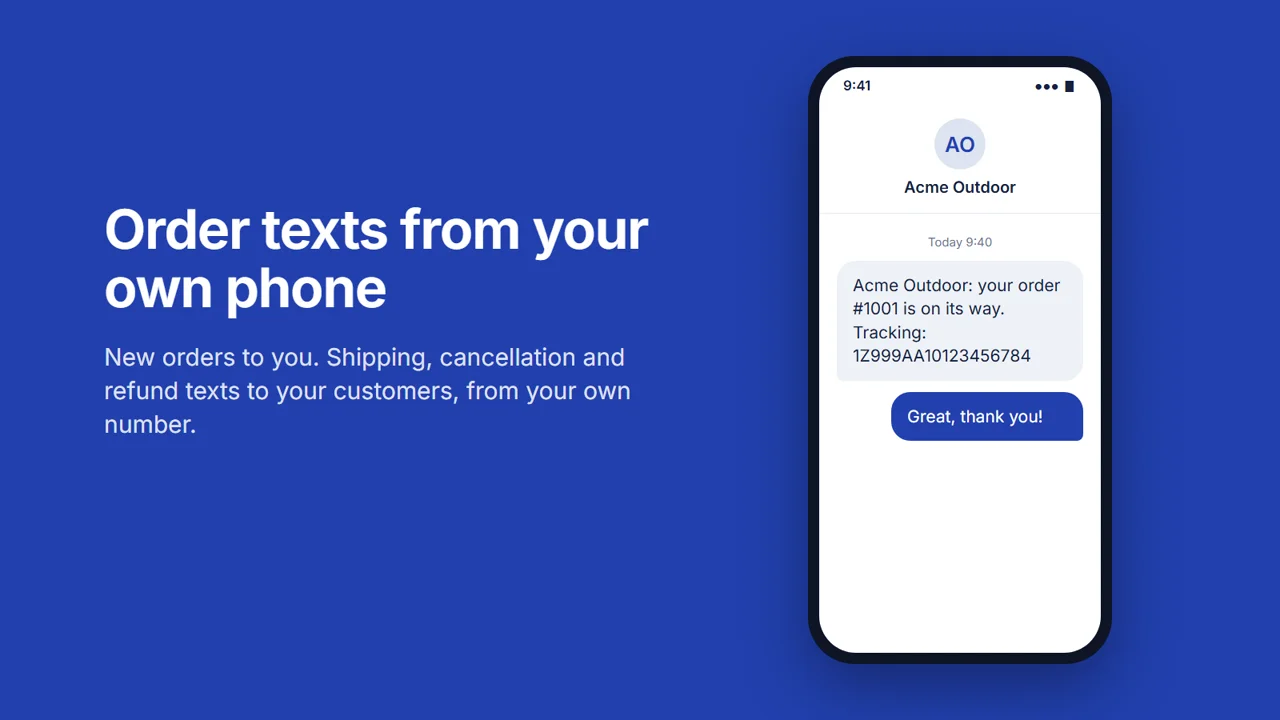 Play the video: SMSTunnel for Shopify: order texts from your own Android phone (1:44)
Set it up (about 3 minutes)
- 1. Find SMSTunnel in the Shopify App Store and install it, once it is listed there. Shopify asks you to allow access to orders, fulfillments, and customers' names and phone numbers (only for the texts). The app opens in your admin.
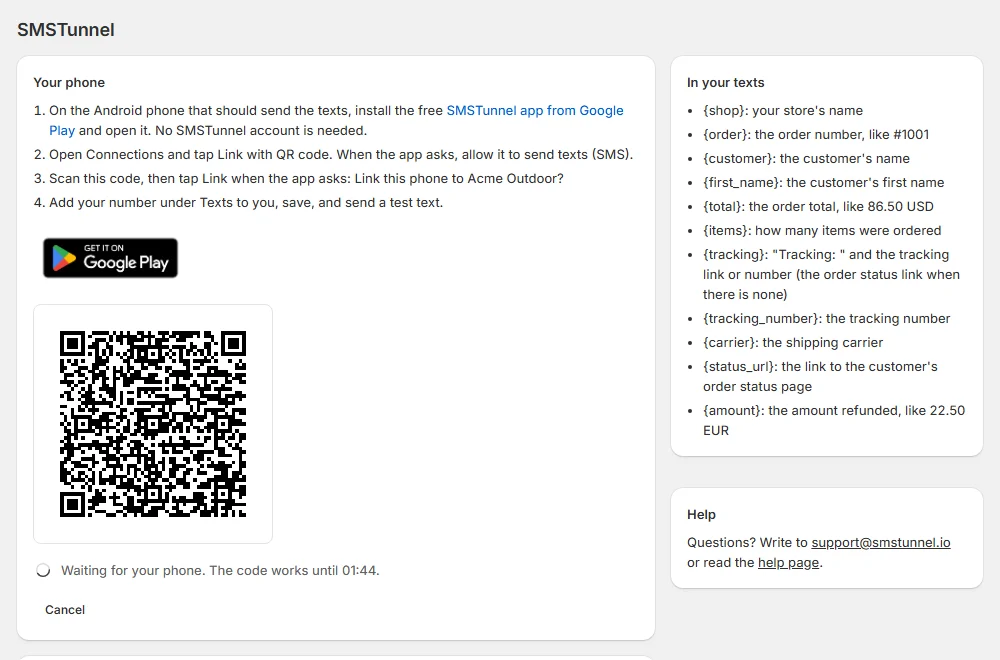
- 2. On the Android phone that should send the texts, install
SMSTunnel from Google Play and open it. No account is needed.

- 3. In the app's page in Shopify, click Show the QR code. On the phone, open Connections → Link with QR code (allow it to send texts when it asks), scan the code, and tap Link when it asks "Link this phone to your store?". The page shows your phone.
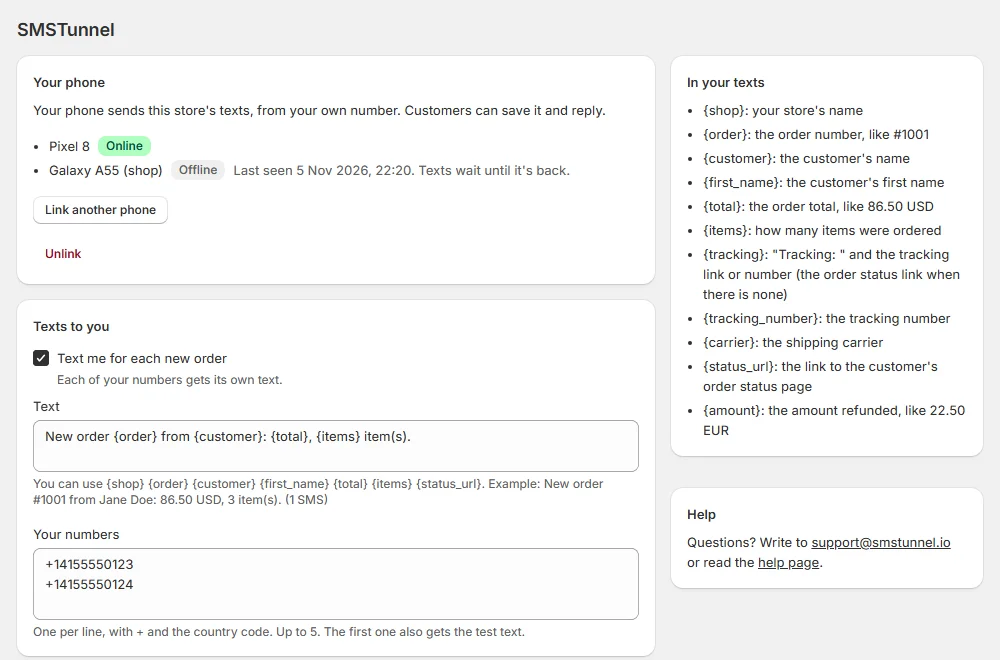
- 4. Add your number under Texts to you, turn on the texts you want, change their words if you like, save, and click Send a test text.
Already use SMSTunnel? Instead of the QR code, click I already use SMSTunnel and paste a key from your dashboard (Apps → Add an app → Shopify): texts go from your account's phones and also show in its dashboard. The plan you choose in the app applies, as for every store.
What it sends
A new order
To you, on up to 5 numbers (one text each)
New order #1001 from Jane Doe: 86.50 USD, 3 item(s).
A shipment, with tracking
To the customer
Acme Outdoor: your order #1001 is on its way. Tracking: https://…
A cancellation optional
To the customer
Acme Outdoor: your order #1001 has been canceled.
A refund optional
To the customer
Acme Outdoor: we have refunded 22.50 USD for your order #1001.
Placeholders for the words:
{shop}, {order}, {customer}, {first_name}, {total}, {items}, {tracking}, {tracking_number}, {carrier}, {status_url}, {amount}. The app's page shows each text with sample values and how many SMS it takes.
Built-in protection
- One text to one number. Each text goes to one number and is about the recipient's own order.
- No short or premium-rate numbers. SMSTunnel never texts them: the phone and the server both refuse them.
- Only the countries you choose. In the SMSTunnel app's Settings on your phone, turn off Allow numbers abroad to keep texts inside your country, or pick the Allowed countries.
Questions about the app
- The phone is offline.
- Texts wait at SMSTunnel and go out when the phone is back online. Keep the SMSTunnel app allowed to run in the background.
- A customer didn't get the shipping text.
- It goes only to shipments with tracking (unless you untick Only when the shipment has tracking) and to orders with a phone number. Recent texts shows each text and why one didn't go out.
- "The number has no country calling code"
-
A number on the order was saved without
+or00: set your country's calling code under Numbers and phone. - Texts are held back.
- Your plan's texts for the month are used: they start again on the 1st, or change your plan (See plans).
- Several phones.
- Link another phone from the same page; SMSTunnel sends from one that is online, or pick one under Send from.
- Replies.
- Customers reply to your number; replies arrive on your phone.
- Privacy.
- Shopify passes your customers' requests to see or erase their data; the app answers them and lists them on its page. What is kept and for how long: our privacy policy.
- Terms.
- These apply when you install the app: SMSTunnel for Shopify: terms for merchants.
- Stop it.
- Unlink on the app's page, or uninstall the app: no more texts go out at once, and the store's data is erased 48 hours after an uninstall.
Plans and more answers: Help and questions. Contact: support@smstunnel.io.
Or use Shopify Flow
For stores that prefer Shopify Flow: without the SMSTunnel app, Flow's own Send HTTP request action hands each text to SMSTunnel. It needs the Grow, Advanced or Plus plan, and you copy the values below into Flow, one workflow for each kind of text.
What it texts
New order
Order created · to you, on one or more numbers
New order #1001 from Jane Doe: 86.50 USD, 3 items.
On its way
Fulfillment created, with tracking · to the customer
Acme Outdoor & Co.: your order #1001 is on its way. Tracking: https://www.ups.com/track?...
Canceled optional
Order canceled · to the customer
Acme Outdoor & Co.: your order #1001 has been canceled.
Refunded optional
Refund created · to the customer
Acme Outdoor & Co.: we have refunded your order #1001. Total refunded: 22.50 EUR.
What you need
- A store on the Grow, Advanced or Plus plan. Flow itself is free on every plan from Basic up, but its Send HTTP request action, which these workflows use, isn't available on Basic.
- The Shopify Flow app (in your admin: Apps → Flow; if it isn't there, add it for free from the Shopify App Store).
- The staff permission Manage connections and secrets, to save your key in Flow and to turn on workflows that use it.
- An Android phone with the SMSTunnel app from Google Play, signed in to your SMSTunnel account.
1. Get your key
- 1. Install the SMSTunnel app from Google Play on your Android phone and sign in.
- 2. In your dashboard, open Apps → Add an app, pick Shopify Flow, name it (for example "Shopify") and click Create the key.
- 3. Copy the key right away: it's shown only once. You can stop or delete the app there anytime, and Shopify can't send texts anymore.
Get the steps with your key in them
It opens Add an app with Shopify Flow picked. Once the key is made, the dashboard shows every step and command with the key already filled in, ready to copy.
The key can send texts and look up whether they went out; it can't read the texts your phone receives.
2. Save the key in Flow
In your Shopify admin, open Apps → Flow → Settings and create a secret:
- Handle
-
smstunnel_api_key - Value
- your SMSTunnel key
- Description
-
SMSTunnel key for texts
Flow never shows the value again and hides it in the run logs. The workflows use it as
{{secrets.smstunnel_api_key}}, so the key never sits in a workflow in plain text. (If you pick
another handle, use it in the header below.)
3. The Send HTTP request action
Every workflow ends with a Send HTTP request action set up the same way; only the Body changes:
- HTTP method
- POST
- URL
-
https://smstunnel.io/api/v1/sms/send - Header Content-Type
-
application/json - Header X-API-Key
-
{{secrets.smstunnel_api_key}} - On client error (4XX response)
- Fail (a wrong key or number won't fix itself; the run shows as failed in Flow)
- On server error (5XX or 429 response)
- Retry (Flow tries again for up to 24 hours)
- Body
- the one for the workflow, below
In each Body, change "defaultCountryCode": "1" to your country's calling code
(40 Romania, 44 UK, 49 Germany,
1 US and Canada…). SMSTunnel uses it only for numbers saved without +
or 00.
Workflow 1: a text to you for every new order
- 1. In Apps → Flow, click Create workflow, then Select a trigger and choose Order created.
- 2. Click + under the trigger, choose
Action, then Send HTTP request, and fill it in as in step 3 with this Body.
Change
+14155550123to your own number, written with+and the country code:Body: new order, to you{%- capture cents -%}{{ order.totalPriceSet.shopMoney.amount | times: 100 | round }}{%- endcapture -%} {%- capture total -%}{{ cents | divided_by: 100 | floor }}.{{ cents | modulo: 100 | plus: 100 | slice: 1, 2 }} {{ order.totalPriceSet.shopMoney.currencyCode }}{%- endcapture -%} {%- capture message -%} New order {{ order.name }}{% if order.customer.displayName %} from {{ order.customer.displayName }}{% endif %}: {{ total }}, {{ order.subtotalLineItemsQuantity }} {% if order.subtotalLineItemsQuantity == 1 %}item{% else %}items{% endif %}. {%- endcapture -%} { "to": "+14155550123", "message": {{ message | strip | json }}, "defaultCountryCode": "1" } - 3. More numbers: each number is its own action. Click + after the action, add another Send HTTP request with the same settings and the same Body, and type the other number. Put the most important number first: if an action fails, the ones after it don't run.
- 4. Click New Workflow at the top, name it (for example "SMSTunnel: text me new orders") and click Turn on workflow.
The first two lines only turn the total into two decimals (86.5 becomes
86.50); the words of the text are inside capture message. To skip
sales made in person with Shopify POS, add a Condition before the action:
order.sourceName Not equal to pos.
Workflow 2: a text to the customer when the order ships
- 1. Create workflow → Select a trigger → Fulfillment created. It runs once per shipment, so a split order gets one text per package, each with its own tracking.
- 2. Click +, choose Condition: pick fulfillment → trackingInfo → number, choose At least one of, then Not empty and exists. This skips fulfillments without tracking, such as digital items.
- 3. On the True path, add another
Condition, choose If any criteria are met, and add three criteria, each
Not empty and exists:
-
fulfillment.order.shippingAddress.phone -
fulfillment.order.phone(the phone given at checkout) -
fulfillment.order.customer.defaultPhoneNumber.phoneNumber
-
- 4. On its True path, add the
Send HTTP request action (step 3) with this Body. It takes the first number it finds, in the
order above:
Body: on its way, to the customer
{%- capture to -%}{{ fulfillment.order.shippingAddress.phone }}{%- endcapture -%} {%- if to == "" -%}{%- capture to -%}{{ fulfillment.order.phone }}{%- endcapture -%}{%- endif -%} {%- if to == "" -%}{%- capture to -%}{{ fulfillment.order.customer.defaultPhoneNumber.phoneNumber }}{%- endcapture -%}{%- endif -%} {%- capture tracking -%} {%- for info in fulfillment.trackingInfo limit: 1 -%} {%- if info.url -%}{{ info.url }}{%- else -%}{{ info.number }}{%- endif -%} {%- endfor -%} {%- endcapture -%} {%- capture message -%} {{ shop.name }}: your order {{ fulfillment.order.name }} is on its way.{% if tracking != "" %} Tracking: {{ tracking }}{% else %} Details: {{ fulfillment.order.statusPageUrl }}{% endif %} {%- endcapture -%} { "to": {{ to | strip | json }}, "message": {{ message | strip | json }}, "defaultCountryCode": "1" } - 5. Name it and click Turn on workflow.
If you ship without tracking numbers, leave out the condition of step 2: the text then links the customer's order status page instead. Tracking added to a shipment later doesn't start the workflow again.
Workflow 3 (optional): canceled or refunded orders
Both start the same way: the trigger, then the "has a phone" Condition from Workflow 2, step 3,
with the same three fields under order (order.shippingAddress.phone,
order.phone, order.customer.defaultPhoneNumber.phoneNumber),
then the action on its True path.
- 3a. Trigger Order canceled, with this Body:
Body: canceled, to the customer
{%- capture to -%}{{ order.shippingAddress.phone }}{%- endcapture -%} {%- if to == "" -%}{%- capture to -%}{{ order.phone }}{%- endcapture -%}{%- endif -%} {%- if to == "" -%}{%- capture to -%}{{ order.customer.defaultPhoneNumber.phoneNumber }}{%- endcapture -%}{%- endif -%} {%- capture message -%} {{ shop.name }}: your order {{ order.name }} has been canceled. {%- endcapture -%} { "to": {{ to | strip | json }}, "message": {{ message | strip | json }}, "defaultCountryCode": "1" } - 3b. Trigger Refund created, with this Body (the
amount is what was refunded on the order so far, in the customer's currency):
Body: refunded, to the customer
{%- capture to -%}{{ order.shippingAddress.phone }}{%- endcapture -%}
{%- if to == "" -%}{%- capture to -%}{{ order.phone }}{%- endcapture -%}{%- endif -%}
{%- if to == "" -%}{%- capture to -%}{{ order.customer.defaultPhoneNumber.phoneNumber }}{%- endcapture -%}{%- endif -%}
{%- capture cents -%}{{ order.totalRefundedSet.presentmentMoney.amount | times: 100 | round }}{%- endcapture -%}
{%- capture refunded -%}{{ cents | divided_by: 100 | floor }}.{{ cents | modulo: 100 | plus: 100 | slice: 1, 2 }} {{ order.totalRefundedSet.presentmentMoney.currencyCode }}{%- endcapture -%}
{%- capture message -%}
{{ shop.name }}: we have refunded your order {{ order.name }}. Total refunded: {{ refunded }}.
{%- endcapture -%}
{
  "to": {{ to | strip | json }},
  "message": {{ message | strip | json }},
  "defaultCountryCode": "1"
}
Canceling an order with a refund starts both workflows, so the customer gets both texts. Turn on only one of them if that is too much.
Try it
- See the text before sending anything: in the workflow, click Test your workflow at the trigger, then + Add event → Create event and pick an existing order. Click the Send HTTP request action and open Preview: you see the Body with the real values. A test never sends the request.
- Send a real one: turn the workflow on and place a test order on your store (or fulfill one). The text leaves from your phone within seconds, and the run shows under the workflow's Recent runs.
Good to know
- One text per number: Flow sends one request per action, and SMSTunnel sends one text per request.
- Wording: change the words inside
capture message. Plain letters keep a text at up to 160 characters per SMS; an emoji or a letter outside the basic SMS alphabet makes it 70. SMSTunnel takes up to 1600 characters. - Which phone sends: with several phones on your account, add
"deviceId": "..."to the Body to always send from one of them (copy its ID under Phones). - Phone switched off: SMSTunnel still accepts the text; it waits (up to 3 days) and goes out as soon as the phone is back online.
- Customers can reply: replies arrive on your phone like any text.
- Free plan: after 25 texts a day (500 a month), up to 25 more a day go out with a short "free by smstunnel.io" line added, and past that SMSTunnel refuses them until the next day. Customers see the line, so a busy store is better on a paid plan (pricing).
- Errors:
401means the key is wrong or was deleted (save a new one in the secret);403means the key lacks a permission or your plan doesn't include something (the answer'scodesays which);400means the number or the text was refused (the answer says why). With Fail, these runs show as failed under Recent runs. To get an email when that happens, make one more workflow with the trigger Workflow error occurred and a Send internal email action. - Limits: about 30 texts a minute; past that SMSTunnel answers
429and Flow retries later. Flow waits up to 30 seconds for an answer; if it gets none, it tries again, so in rare cases a customer could get the same text twice. - Reusing the workflows: in Apps → Flow, select them and click
More actions → Export to get
.flowfiles you can import in another store (Import). Shopify builds these files itself and says not to edit them by hand, which is why this page gives the values to copy instead of ready-made files. The key isn't part of the workflow: create the same secret in the other store. - Only expected texts: send customers only texts they expect, about their own order.
Questions
- Does it work on the Basic plan?
- Not with Flow: its Send HTTP request action needs Grow, Advanced or Plus.
- Do I install anything in Shopify?
- Only Flow, Shopify's own free app, if it isn't there yet. You paste the values into it.
- Can I import a ready-made workflow?
-
Shopify creates
.flowfiles itself and doesn't support files made outside Flow, so this page gives the values to copy. Once a workflow works in your store, you can export it and import it in your other stores. - What does it cost?
- Your carrier's usual price for each text, plus your SMSTunnel plan.
Build it with an AI assistant
Copy this prompt into Claude, ChatGPT, Cursor or Copilot and replace the part in [brackets]. Don't paste your API key into the chat: the prompt doesn't need it.
Help me set up Shopify Flow workflows that text order updates from my own phone with SMSTunnel.

About SMSTunnel (https://smstunnel.io): my own apps and tools hand text messages (SMS) to my SMSTunnel account, and my own Android phone sends them from my own number, on my own SIM and plan. The phone runs the SMSTunnel app from Google Play (https://play.google.com/store/apps/details?id=io.smstunnel.app), signed in to my account.

What I want: [describe what should send a text, to whom, and when]

How it works:
- Shopify Flow (free app, Apps → Flow). Its "Send HTTP request" action needs the Grow, Advanced or Plus plan.
- Save the SMSTunnel key once in Flow → Settings as a secret with the handle smstunnel_api_key; the workflows use it as {{secrets.smstunnel_api_key}} so the key is never typed into a workflow.
- Each workflow: a trigger (Order created, Fulfillment created, Order canceled or Refund created), a Condition that checks there is a phone number ("Not empty and exists" on order.shippingAddress.phone, order.phone or order.customer.defaultPhoneNumber.phoneNumber), then a Send HTTP request action: POST https://smstunnel.io/api/v1/sms/send, headers Content-Type: application/json and X-API-Key: {{secrets.smstunnel_api_key}}, On client error (4XX) → Fail, On server error (5XX or 429) → Retry.
- The Body is JSON built with Flow Liquid: {"to": ..., "message": ..., "defaultCountryCode": "1"}. Build the words with {% capture message %} and write them with {{ message | strip | json }} so quotes and emoji stay valid JSON. Flow Liquid uses GraphQL Admin API names in camelCase, has no list indexes (use a for loop), no dot filters (use | size), and no assign (use capture).
- Several numbers: one Send HTTP request action per number.
- The API key comes from my SMSTunnel dashboard (https://dashboard.smstunnel.io): Apps → Add an app → Create the key. It is shown only once and can send texts and check whether they went out.

SMSTunnel API facts:
- Send a text: POST https://smstunnel.io/api/v1/sms/send with the headers "X-API-Key: <key>" and "Content-Type: application/json", and the JSON body {"to": "+14155550123", "message": "..."}. Optional: "deviceId" (which of my phones sends it; default: my main phone) and "defaultCountryCode". Other fields are refused with 400.
- Call it from a server: browsers can't send the X-API-Key header to SMSTunnel (CORS), and the key must stay secret.
- One recipient per call. To text several people, make one call per number.
- Numbers: international format, with + and the country code. For numbers written without + or 00, "defaultCountryCode" ("44", "+44" or "0044") completes them, and it always takes precedence over the country set for the phone.
- A text can be up to 1600 characters (10 joined SMS).
- Sign-in codes: POST https://smstunnel.io/api/v1/sms/send-2fa, same headers and fields. The text must contain the code as 4 to 10 digits standing on their own (like 482913) or as 123-456, and can be up to 320 characters; otherwise the answer is 400 "No valid verification code found". Codes have their own daily allowance. My app creates and checks the code; SMSTunnel only delivers the text.
- Success: HTTP 200 {"success": true, "messageId": "...", "data": {"messageId": "...", "branded": false, ...}}. "queued": true is added when the phone is offline: the text waits and goes out as soon as the phone is back (for up to 3 days). On the Free plan, 25 texts a day (500 a month) go out as written, up to 25 more a day go out with a short "free by smstunnel.io" line added ("branded": true), and past that the answer is 429.
- Errors: 400 bad input (the "message" field says why, sometimes as a list); 401 missing or invalid key; 403 the key lacks a permission ("code": "PERMISSION_REQUIRED", "permission": "...") or my plan does not include the feature; 429 with a Retry-After header: too many requests (30 send requests a minute per API key, 90 for all keys of one account together), so wait that many seconds, then retry; 429 without Retry-After: the plan's limit for the day or month is reached, so don't retry before then; 5xx: retry later, with a limit.
- Safe retries: send the header "Idempotency-Key: <one key per text>" (1 to 255 printable ASCII characters, such as order-1042-shipped or a UUID stored with the text). A repeat with the same key within 24 hours gets the first answer back (or the same 5xx error) instead of a second text; 409 while the first request is still running, 422 if the key was used for a different text.
- Status: GET https://smstunnel.io/api/v1/sms/status/{messageId} answers {"success": true, "data": {"status": ...}}, with pending, sent, delivered or failed. If "unconfirmed" is true, the phone handed the text to its SIM without getting a confirmation: it was probably sent, so never resend it automatically.

Rules for your answer:
- Do not ask for my SMSTunnel password or API key and do not put a real key in your answer; I will not paste it in this chat.
- Phone numbers must be in international format (+ and the country code).
- Help me test it with my own number first.
- Only send texts people expect from me. No unsolicited texts.
- Skip the text when there is no phone number, and only text customers about their own order.
Responsible use
Built for alerts to yourself and your team, and texts people expect from you. One text goes to one number. Sending unsolicited messages from a consumer SIM generally breaches mobile carrier terms of service.
Shopify is a trademark of Shopify Inc. SMSTunnel is a third-party integration and is not affiliated with, endorsed by, or sponsored by Shopify Inc.
More texts from your own tools
No phone paired yet?
Install the Android app and sign in with your account, and you're ready in about a minute.