Google Sheets
Text reminders from Google Calendar and Google Sheets, sent from your own phone
Google Calendar stopped texting reminders in 2019. Bring them back, and text people from Google Sheets, with free Apps Script templates and your own phone.
By NARBOWEB SRL, the team behind SMSTunnel Published 8 min read
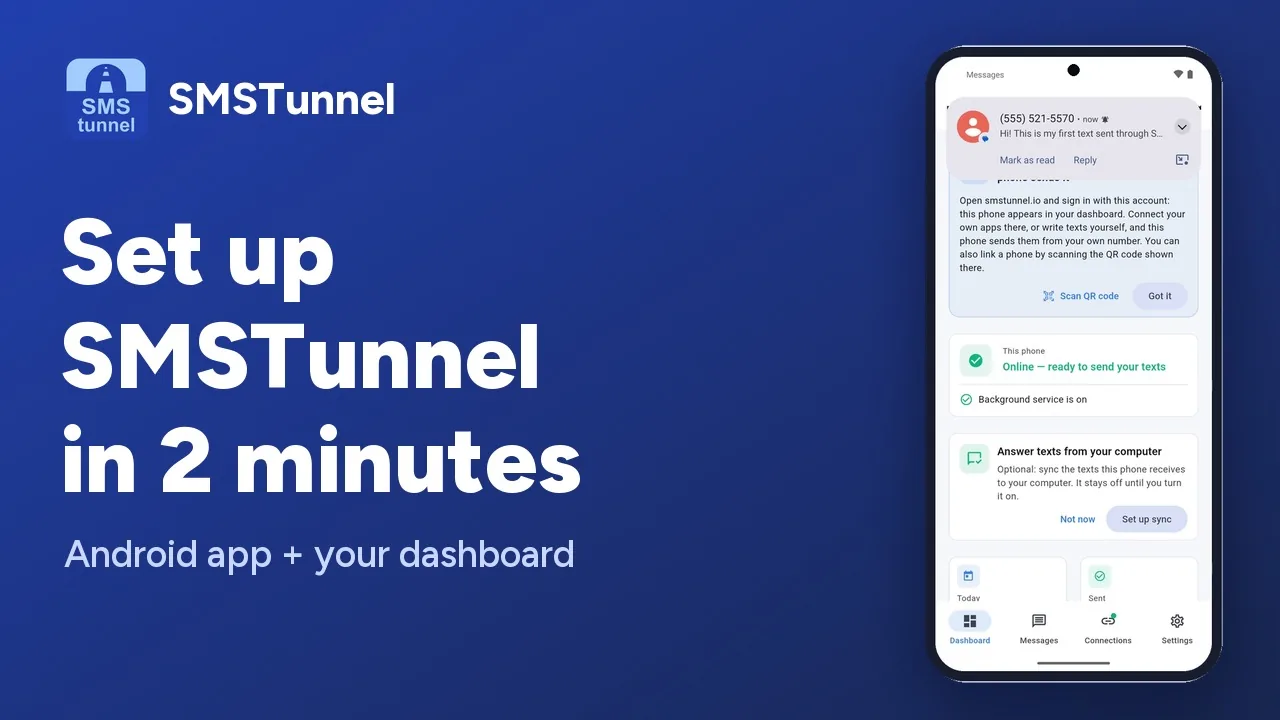 Play the video: Set up SMSTunnel on your Android phone in 2 minutes (1:34)
Google Calendar stopped sending SMS notifications on 7 January 2019. Since then its reminders come as app and email notifications only, which are easy to miss when you are driving, in a meeting or away from your inbox. A text is harder to miss, and it also reaches people who don’t use Google Calendar at all, like the clients in your appointments.
SMSTunnel brings text reminders back, and adds texts from your spreadsheets. Free Google Apps Script templates hand each text to your SMSTunnel account, and your own Android phone sends it from your own number. The people you text see a number they know, and they can reply to you. There is no server to run: everything lives in Apps Script, inside your own spreadsheet.
What you can text from Google
There are four ready templates, plus a small library for your own code:
| Template | What it texts |
|---|---|
| Google Calendar | Reminders before your events, a morning agenda, reminders to the people in your appointments |
| Google Sheets: status texts | A text to the row’s number when its status becomes “Shipped”, “Ready” or another value you choose |
| Google Sheets: appointment reminders | One reminder for each appointment, a few hours before |
| Google Forms | A text to you for each response, and an optional confirmation to the person who answered |
Every template sends one text per number, only to the numbers it was set up for, with a cap per run, and never the same text twice. There is no button that texts everyone in a sheet, on purpose.
What you need
- An Android phone with the SMSTunnel app from Google Play, signed in to your account. The video above shows the setup.
- A Google account. Personal accounts and Google Workspace accounts both work, and Apps Script is free with either.
- An SMSTunnel key. In your dashboard, open Apps → Add an app, pick Script or server, name it (for example “Google Sheets”) and click Create the key. Copy it right away: it is shown only once. Make one key per spreadsheet or form, so you can stop one without touching the others.
Step 1: add a template to your spreadsheet
One-click copies of the templates (Make a copy) are coming soon. Today you paste the code from the smstunnel-google repository on GitHub, which takes a few minutes:
- Open the spreadsheet: your data for Google Sheets, or a new one for Google Calendar (it keeps the log and, if you want, your guests’ numbers). Then choose Extensions → Apps Script.
- In the repository, open the template’s folder:
apps-script/calendar-reminders,apps-script/sheets-status-textsorapps-script/sheets-reminders. Make the same files in the editor and paste each one’s content:SmsTunnel,SmsTunnelKitandCodeas script files (+ → Script), andSetupas an HTML file (+ → HTML). - Open Project Settings (the gear), tick Show “appsscript.json” manifest file in editor, open
appsscript.jsonand replace it with the template’s. - Save, go back to your spreadsheet and reload it. The SMSTunnel menu shows up after a few seconds.
For a form, the editor is under ⋮ (More) → Apps Script in the form’s editor, and the folder is apps-script/forms-text-me. People who fill in the form never see the menu.
Step 2: set it up and send a test
Choose SMSTunnel → Set up. The first time, Google asks you to allow the script and, because it is your own copy of a script Google hasn’t reviewed, shows “Google hasn’t verified this app”. That is expected: click Advanced → Go to … (unsafe). Tick all the permissions: the script calls only smstunnel.io, works in this spreadsheet only, reads your calendars without ever changing them, and runs its triggers while you are away.
Then paste your key, click Check, choose the phone that sends the texts, fill in the rest and click Save and turn on. Finish with a test to yourself: SMSTunnel → Send a test text, or Send me a test reminder in the Calendar template.
Google Calendar: three kinds of reminders
Set up has three parts. Turn on the ones you want.
Remind me before each event
A text to your own numbers (up to 5, one text each) 10, 15, 30 or 45 minutes, 1 to 12 hours, or a day before each event in the calendars you choose. You can limit it to events whose title has a word you choose, like “dentist”. All-day events are left out unless you include them. A reminder reads like this:
Reminder: Dentist at 2:30 PM (in 15 min)Your agenda every morning
One text a day at the hour you choose, such as “Today, Mon, Nov 2: 9:00 AM Dentist, 2:00 PM Call with Ana”. Days with nothing planned are skipped unless you say otherwise.
Remind the people in your appointments
This is the one for practices, salons and anyone who books clients. The number comes from a line in the event’s description that starts with a word you choose and a colon, such as SMS: +1 415 555 0123, or from a Phone numbers sheet for guests you invited. Other numbers in a description, such as a video call’s dial-in line, are never used.
By default only events you created count, so an invitation from someone else can’t choose who gets a text from your phone. Reminders to people go out only between the hours you choose (8:00 to 21:00 by default), to at most 10 people per event. Texts can use {Title}, {Date}, {Time}, {Location}, {Calendar}, {In} and, for people, {Name}.
Each reminder goes out once. A hidden SMSTunnel sent sheet records every text, and if an event moves, its new time gets one new text. Preview the next texts shows what would go out in the next 24 hours without sending anything.
Google Sheets: status texts and appointment reminders
A text when a row’s status changes
Choose the sheet, the status column, the value that triggers the text and the phone column, then write the text with the row’s columns as placeholders:
Hi {Name}, your order {Order} has shipped.When someone sets a row’s status to that value, the number in that row gets the text, and a Texted at column shows when. A row is never texted twice, and rows that already had the value at setup are skipped, so only changes from now on send texts.
Pasting the value into many rows sends at most 20 texts at once (you can raise that to 50); the rest wait. Edits made by other apps or scripts don’t fire Google’s edit trigger, so tick Also check every 15 minutes if your sheet is filled in by another tool.
Appointment reminders from a sheet
Choose the phone column, the date column and, if the time has its own column, the time column. Dates can be real dates or text like 2026-11-02 14:30, read in the spreadsheet’s time zone (File → Settings). Every hour, each row whose appointment falls within the next hours you choose (24 by default) gets one reminder, between 8:00 and 21:00 by default, at most 25 per run. Reminder sent records it, and a row without a valid number is marked Not sent with the reason.
Your own Apps Script code
Developers can paste apps-script/library/SmsTunnel.js into any Apps Script project and call it directly. Save the key once with SmsTunnel.setApiKey(), which keeps it in your user properties, then send:
// Text the number in the row you are on.
function textThisRow() {
  var sheet = SpreadsheetApp.getActiveSheet();
  var row = sheet.getActiveRange().getRow();
  var phone = SmsTunnel.normalizePhone(sheet.getRange(row, 2).getDisplayValue(), '+1');
  if (!phone.ok) throw new Error(phone.message);
  var result = SmsTunnel.sendSms(phone.number, 'Your order is ready for pickup.');
  sheet.getRange(row, 5).setValue(result.queued ? 'Waiting for my phone' : 'Texted');
}
One number per call: to text several people, call sendSms once for each. The Google Sheets guide lists the other functions and their errors.
Limits worth knowing
- Numbers go in international format, like
+14155550123. Format → Number → Plain text keeps the+in a cell. A number without a country code is skipped unless you set one in Set up → More settings, so a text never goes to the wrong country. - SMSTunnel takes 30 send requests a minute and up to 1600 characters per text, and your plan’s daily allowance applies. The templates pause 2 seconds between texts and cap each run.
- Google’s quotas: a free Google account gets 20,000 URL Fetch calls a day (one per text) and 90 minutes of trigger run time a day; Workspace accounts get more.
- If your phone is offline, the text waits in your account and goes out as soon as the phone is back online.
- Your key stays in the script’s user properties, never in a cell or a log. Anyone with edit access to the spreadsheet can edit its script, so share it only with people you trust. Deleting the key under Apps in your dashboard stops every text at once.
Common questions
Does it cost anything?
The templates are free, and so is Apps Script. The texts count against your SMSTunnel plan, and your mobile plan applies to the texts your phone sends. The Free plan covers 25 texts a day and 500 a month exactly as written, which is plenty for personal reminders; Starter, at $9 a month, allows 300 texts a day for a busy appointment book.
Whose number do people see?
Yours. The texts leave your own phone, from its SIM, like a text you type yourself, and replies come back to your phone.
My calendar is in Outlook. What then?
See reminder texts for Outlook Calendar, built with n8n, Power Automate, Zapier or Make.
Can an AI assistant send the reminders instead?
Yes, when you ask: with the SMSTunnel MCP server and a calendar connector, an assistant like Claude can text tomorrow’s clients after showing you the list. It doesn’t run on a schedule, though, so for reminders that go out on their own, use the Calendar template.
See also
More from the blog
Try it with your own phone
Install the Android app, sign in, and your own software can send its first text in a few minutes. The Free plan needs no credit card.