AI
Let Claude, Cursor and VS Code send texts from your own phone
Connect the SMSTunnel MCP server to Claude, Cursor or VS Code, and your AI assistant can text from your own phone and number, after you approve each text.
By NARBOWEB SRL, the team behind SMSTunnel Published 8 min read
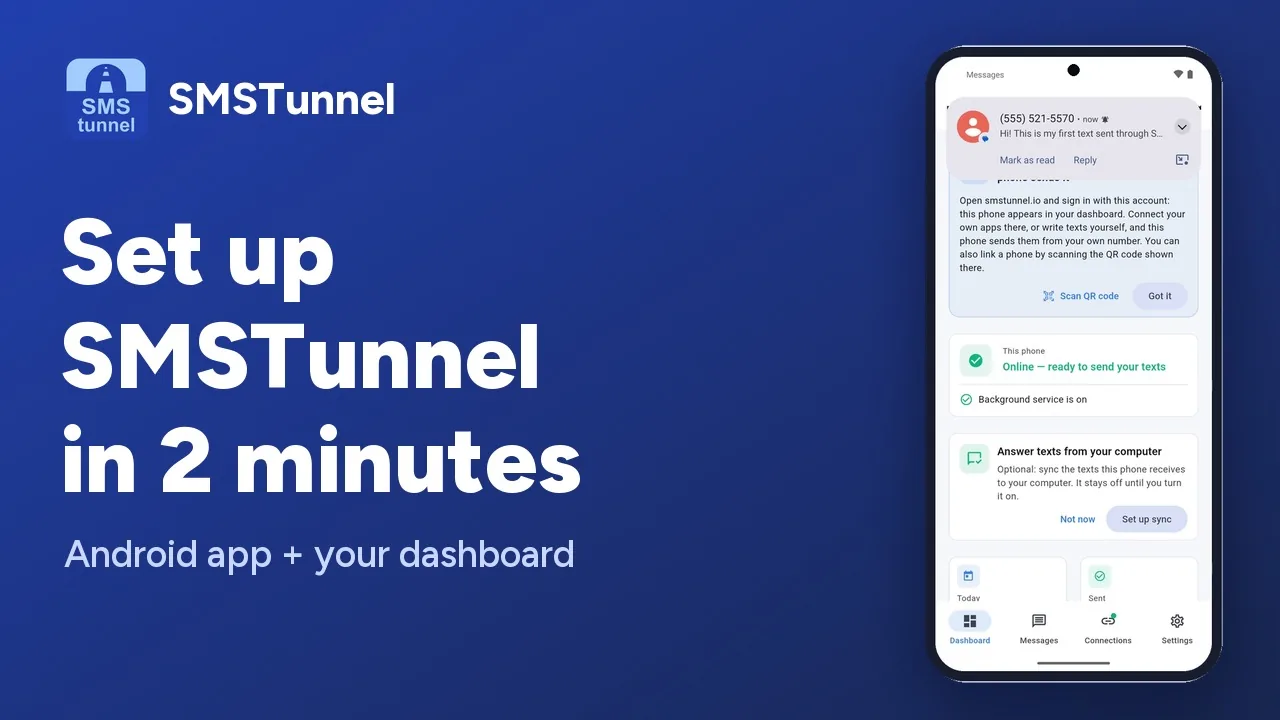 Play the video: Set up SMSTunnel on your Android phone in 2 minutes (1:34)
“Text Ana that I’m running ten minutes late.” Typed into Claude, that sentence can become a real text from your own number. The SMSTunnel MCP server gives Claude Desktop, Claude Code, Cursor and VS Code a few tools: the assistant hands the text to your SMSTunnel account, and the SMSTunnel app on your Android phone sends it from its own SIM. Ana sees a number she knows, and she can reply.
The server is published: the package @narcisbodea/smstunnel-mcp on npm, the entry io.github.narcisbodea/smstunnel-mcp in the MCP Registry, and the source code on GitHub under the MIT license. The MCP server page has the same setup on one screen.
This guide sets it up in a few minutes and explains the rules built into it: you approve each text, every text goes to one person, and texts you receive are treated as data, never as instructions.
What the assistant can do
MCP, the Model Context Protocol, is an open standard that lets AI apps use outside tools. The SMSTunnel server adds six:
| Tool | What it does |
|---|---|
send_sms | Sends one text to one number. For several people, one text each. |
send_sign_in_code | Sends a sign-in or verification code (a code of 4 to 10 digits). |
get_message_status | Tells whether a text is pending, sent, delivered or failed. |
list_phones | Lists your linked phones, and which are online. |
get_usage | Shows your plan, what you sent today and what is left. |
list_received_texts | Reads texts your phone received, only if you allow it. |
Every tool carries the MCP annotations that say whether it only reads or also changes something, so AI apps that support them can ask you before anything is sent.
Step 1: link your phone and create a key
- Install the SMSTunnel app from Google Play on your Android phone and sign in. Sign in to your dashboard on your computer with the same account: the phone appears under Phones.
- In the dashboard, open Apps → Add an app and copy its key. It is shown only once, and it can send texts and look up whether they went out.
- Optional: to let the assistant read the texts you receive, turn on Can also read received texts when you add the app, and turn on syncing of received texts in the SMSTunnel app. Syncing is off by default, and only texts that arrive after you turn it on are synced.
Step 2: add the server to your AI app
You need Node.js 20 or newer. Your AI app starts the server with npx; you don’t run it yourself.
Claude Desktop and Cursor
In Claude Desktop, open Settings → Developer → Edit Config (claude_desktop_config.json), add the server, then quit and restart Claude. Cursor takes the same block in ~/.cursor/mcp.json (all projects) or .cursor/mcp.json (one project).
{
  "mcpServers": {
    "smstunnel": {
      "command": "npx",
      "args": ["-y", "@narcisbodea/smstunnel-mcp"],
      "env": {
        "SMSTUNNEL_API_KEY": "sk_live_your_key"
      }
    }
  }
}
On Windows, if the app can’t start npx, use "command": "cmd" and "args": ["/c", "npx", "-y", "@narcisbodea/smstunnel-mcp"].
Claude Code
claude mcp add --env SMSTUNNEL_API_KEY=sk_live_your_key --transport stdio --scope user smstunnel -- npx -y @narcisbodea/smstunnel-mcpRun /mcp in Claude Code to check that smstunnel is connected.
VS Code
In .vscode/mcp.json, VS Code asks for the key once and keeps it out of the file:
{
  "inputs": [
    { "type": "promptString", "id": "smstunnel-api-key", "description": "SMSTunnel API key", "password": true }
  ],
  "servers": {
    "smstunnel": {
      "type": "stdio",
      "command": "npx",
      "args": ["-y", "@narcisbodea/smstunnel-mcp"],
      "env": { "SMSTUNNEL_API_KEY": "${input:smstunnel-api-key}" }
    }
  }
}
The settings
All settings go in the server’s env:
| Setting | What it does |
|---|---|
SMSTUNNEL_API_KEY | Required: the key from Apps → Add an app. |
SMSTUNNEL_DEVICE_ID | Optional: the phone that sends when the assistant doesn’t name one. Its ID is under Phones. |
SMSTUNNEL_DEFAULT_COUNTRY_CODE | Optional, like +44: completes numbers written without + or 00. |
SMSTUNNEL_CONFIRM_EACH_TEXT | true by default: apps that support it, like Claude Code, ask before every text. Set false only for unattended runs, such as a script that texts you. |
Step 3: try it
Start with your own number, then try things like these:
- “Text +14155550123: the delivery is at the back door.”
- “Did my last text go out?”
- “Which of my phones are online?”
- “How many texts do I have left today?”
- “Did anyone reply to me since this morning?” (with received texts allowed)
Before sending, the assistant shows you the number and the exact words and waits for your OK. Once the text is handed to your account, it gets a message ID and can tell you later whether the text went out.
Calendar reminders, when you ask
Put SMSTunnel next to your calendar in the same AI app, and the assistant can read your appointments and text reminders from your own number. In Claude, open Customize → Connectors and connect Google Calendar, or Microsoft 365 for an Outlook calendar on a work or school account. Then ask:
“Look at my calendar for tomorrow and text each client with an appointment a reminder with the time. Show me the list first.”
The assistant reads the events, finds each client’s number and shows you the whole list: each person, their number and the exact text. After your OK it sends one text per person, and it never resends a failed text on its own. Keep each client’s number in the event, with + and the country code, so the assistant can find it. Calendar events can also come from other people’s invitations, so read the list before you approve it.
The assistant acts when you ask; it doesn’t run on a schedule. For reminders that go out on their own, use the free Google Calendar template (Google Calendar stopped its own SMS notifications in January 2019) or the Outlook Calendar recipes for n8n, Power Automate, Zapier or Make.
The rules built into the server
An assistant that can send texts needs clear limits. These are part of the server, not just advice:
- You approve each text. The tools tell the assistant to show you the number and the words, or the whole list for several people, and to wait for your OK. With
SMSTUNNEL_CONFIRM_EACH_TEXTleft on, Claude Code asks before every single text, even in modes that otherwise run tools on their own. - One recipient per text. There is no tool for several numbers: the assistant sends one text per person, about 30 a minute at most.
- No blind resends. A failed or unconfirmed text may still have gone out, so the assistant asks you instead of sending it again.
- Received texts are data. Anyone can text your phone, so the assistant treats their words as information, never as instructions. Turn reading on only if you need it.
- Your key stays in your AI app’s settings, never in a chat, a repository or a web page. Delete the app under Apps in your dashboard to cut it off at once.
- Only texts people expect: replies, reminders, alerts to yourself, sign-in codes.
One more thing to know: texts sent through the MCP server are kept on your dashboard’s Messages page, like texts from your other apps. The server doesn’t encrypt them end to end; if you need that for texts from your own software, see how end-to-end encryption works.
What about ChatGPT?
ChatGPT connects only to MCP servers on the internet, over HTTPS, so it can’t start this server on your computer. Use Claude Desktop, Claude Code, Cursor or VS Code. If you’d rather write your own code, the same things are one HTTPS call away in the API reference.
Common questions
What does it cost?
The MCP server itself is free and open source. The texts count toward your SMSTunnel plan like texts from any of your apps. The Free plan includes 25 texts a day and 500 a month as you wrote them, plus up to 25 more a day that end with a short “free by smstunnel.io” line, and 50 sign-in codes a day. Paid plans start at $9 a month, before tax: see Pricing. Your mobile plan’s SMS charges or allowance apply, because your own SIM sends the texts.
Can the assistant text several people?
Yes, one person at a time: it shows you everyone it will text first, and after your OK it sends one text to each number. There is no call that sends one text to many numbers.
Which phone sends the text?
Any phone linked to your account can. Set SMSTUNNEL_DEVICE_ID to the ID of the phone you want by default, or ask the assistant to use a particular phone: it can list your phones with their IDs and use the one you name.
Can I stop it?
Yes, at any time. Delete the app under Apps in your dashboard, and its key can’t send texts anymore. You can also remove the server from your AI app’s settings.
See also
More from the blog
Try it with your own phone
Install the Android app, sign in, and your own software can send its first text in a few minutes. The Free plan needs no credit card.