n8n
Send texts from n8n through your own Android phone
Send SMS from your n8n workflows through your own Android phone and number with the free SMSTunnel community node: install, credentials and three workflows.
By NARBOWEB SRL, the team behind SMSTunnel Published 8 min read
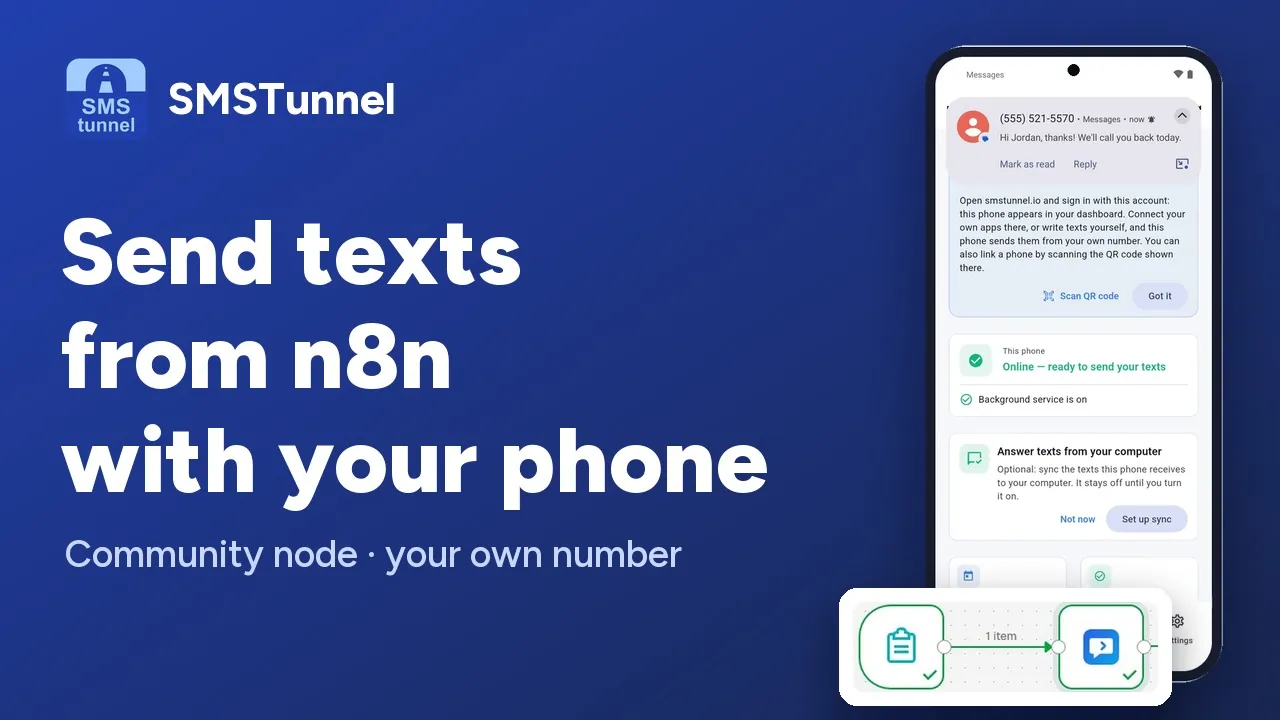 Play the video: Send texts from n8n through your own phone (1:44)
n8n is good at noticing things: a form was submitted, a row changed in a sheet, a workflow failed at 3 a.m., tomorrow’s appointments are ready. Telling a person about it by text message usually means signing up with an SMS API provider, renting a number and paying for every message.
If you have an Android phone with a SIM, there is a shorter route. The SMSTunnel community node for n8n hands each text to your SMSTunnel account, and the SMSTunnel app on your phone sends it from your own number. The people you text see a number they already know, and they can reply to it. SMSTunnel charges no per-message fees: what a text costs is whatever your mobile plan charges for SMS.
This guide sets it up from scratch on the Free plan: link the phone, create a key, install n8n-nodes-smstunnel, and build three workflows you can copy — a form that texts the person who filled it in, an alert when any workflow fails, and reminders the day before an appointment.
What you need
- An Android phone with Android 7.0 or newer and a SIM that can send SMS, online over Wi-Fi or mobile data. A spare phone that stays on the charger works too.
- A free SMSTunnel account. The Free plan includes 25 texts a day and 500 a month sent exactly as you wrote them, up to 25 more texts a day from your own software that end with a short “free by smstunnel.io” line, and 50 sign-in codes a day. Paid plans start at $9 a month; see pricing.
- An n8n where you can install community nodes. This guide and the video use a self-hosted n8n. Where else community nodes can be installed is up to n8n, so check n8n’s page on community nodes. If you can’t install them, the HTTP Request node does the same job with a few more fields.
Step 1: link your phone
- Create an account at dashboard.smstunnel.io, or continue with Google or Facebook.
- Install the SMSTunnel app from Google Play on the phone, sign in with the same account and turn on the service. The app explains why it needs to send SMS before Android asks for the permission.
- The phone now shows up in your dashboard under Phones. You can also link it with a QR code: open Phones → Add phone on your computer and scan the code from the app, under Connections → Link with QR code.
Before you touch n8n, send yourself a test from the dashboard with Write a text. If it arrives, the rest is n8n configuration. The documentation covers the app’s permissions and background service.
Step 2: create a key for n8n
In the dashboard, open Apps → Add an app, choose n8n and copy the key. It is shown only once, so paste it straight into n8n or somewhere safe. The key can send texts and check whether they went out, nothing more. To cut n8n off later, delete the app in the same place.
One operation needs more than that. Get Received reads the texts your phone receives, so it only works with a key you explicitly allowed to read them (Can also read received texts when you create it, or Allow reading received texts later). It also needs Sync received texts turned on in the app. Sync is off by default, only texts that arrive after you turn it on are copied, and your existing inbox is never read.
Step 3: install n8n-nodes-smstunnel
In n8n:
- Open Settings → Community Nodes.
- Select Install and enter
n8n-nodes-smstunnel. - Agree to the risks of using community nodes and select Install.
To install it by hand instead, run this in your n8n installation directory:
npm install n8n-nodes-smstunnelWith Docker, add the package to your custom image or mount it into ~/.n8n/custom. The node is open source, under the MIT license.
Step 4: add the credentials
Create new SMSTunnel API credentials:
| Field | Value |
|---|---|
| API Key | The key from step 2. n8n sends it in the X-API-Key header. |
| Base URL | https://smstunnel.io. Change it only for a self-hosted instance. |
Select Test before you save: it checks the key.
Step 5: text the person who filled in a form
This is the workflow from the video: someone fills in a form and gets a text from your number seconds later.
- Add an n8n Form Trigger with two fields,
NameandPhone. - Add the SMSTunnel node with resource Message and operation Send.
- Fill in To and Message with expressions:
To:      {{ $json["Phone"] }}
Message: Thanks {{ $json["Name"] }}, we got your request and will call you back today.- Under Additional Fields, set Default Country Code, for example
+44. Numbers typed without+or00get that code and lose their leading 0, so07700 900123goes to+447700900123. It takes precedence over the country set for your phone. - Open the form, enter your own number and submit. The text arrives from the phone you linked.
Every text the node sends has exactly one recipient. If ten people fill in the form, n8n runs the node ten times and each person gets their own text.
Two more workflows worth copying
A text when any workflow fails
An SMS reaches you even when the phone in your pocket has no data connection.
- Create a workflow that starts with an Error Trigger node.
- Add SMSTunnel → Message → Send, with To set to your own number and this Message:
Workflow {{$json["workflow"]["name"]}} failed: {{$json["execution"]["error"]["message"]}}- In the settings of each workflow you want to watch, choose this one as its error workflow.
Reminders the day before an appointment
A Schedule Trigger runs every day at 18:00. A database, Google Sheets or HTTP Request node fetches tomorrow’s appointments, and SMSTunnel → Send texts each person, with To set to {{ $json.phone }}. With Default Country Code set, numbers stored without a prefix still work. Because the reminder comes from your number, people can simply reply to move or cancel, and the reply lands on your phone. If your appointments already live in a spreadsheet or a calendar, the Google Sheets and Calendar guide shows another way to send them.
Sign-in codes, status and replies
The node does more than send:
- Send 2FA Code sends a sign-in code that your workflow generated. The text must contain the code — 4 to 10 digits standing on their own, such as
482913or12-345678, or two groups of three digits like123-456— and can be up to 320 characters. Codes have their own daily allowance: 50 a day on the Free plan, no daily cap on paid plans. SMSTunnel only delivers the code; your workflow creates it and checks it. There is more in the guide to sign-in codes without Twilio. - Get Status takes a message ID and tells you whether the text is pending, sent or failed. A failed text marked as unconfirmed was most likely sent, so don’t resend it automatically.
- Get Received returns the texts your phone received, with the permission and the sync from step 2. A scheduled workflow can use it to pick up replies.
- Get Usage shows what you sent today and what is left, and Device → Get Many lists your phones and which of them are online.
Texting a few people at once
Sometimes the same text should reach a handful of people, such as everyone on call this week. Send to Several Recipients takes up to 100 numbers separated by commas, semicolons or new lines, and each recipient gets their own text. It needs the phone to be online when it runs. A plain Send to an offline phone waits instead, and goes out when the phone is back, within 3 days.
Use it rather than a loop of Send: SMSTunnel accepts 30 send requests a minute, and the node doesn’t retry after a “too many requests” answer. Also worth knowing:
- A text can be up to 1600 characters, which the phone sends as up to 10 joined SMS.
- A failed call stops the workflow. Turn on Continue On Fail to get an
errorfield on the item instead, and handle it in the next node.
Keep it to people who expect to hear from you: alerts, reminders, replies and codes.
No community nodes? Use the HTTP Request node
If your n8n can’t install community nodes, the built-in HTTP Request node can call the SMSTunnel API directly:
- method
POSTand URLhttps://smstunnel.io/api/v1/sms/send; - a header
X-API-Keywith your key, kept in an n8n credential such as Header Auth rather than typed into the node; - a JSON body with one recipient:
{
  "to": "+447700900123",
  "message": "Your order #1042 is ready for pickup."
}
The answer contains a messageId for checking the status later. Optional fields: deviceId (which of your phones sends it) and defaultCountryCode. The API reference lists every endpoint and error, and the n8n integration page has all the node’s fields.
Common questions
Does it work on the Free plan?
Yes. The node is free, and on the Free plan up to 25 texts a day and 500 a month go out exactly as written; up to 25 more a day end with the short “free by smstunnel.io” line. Paid plans never add anything to your texts.
Whose number do people see?
The number of the SIM in the phone that sends. Replies go to that phone like any other text, and with sync turned on you can also read them in your dashboard.
What if my phone is offline?
A text from Send waits in your account and goes out when the phone is back online, for up to 3 days. Send to Several Recipients needs the phone online.
See also
More from the blog
Try it with your own phone
Install the Android app, sign in, and your own software can send its first text in a few minutes. The Free plan needs no credit card.