Home Assistant
Home Assistant SMS notifications from your own phone
Text yourself from Home Assistant through your own Android phone and number: leak, power cut, freezer and door alerts with notify.smstunnel, step by step.
By NARBOWEB SRL, the team behind SMSTunnel Published 7 min read
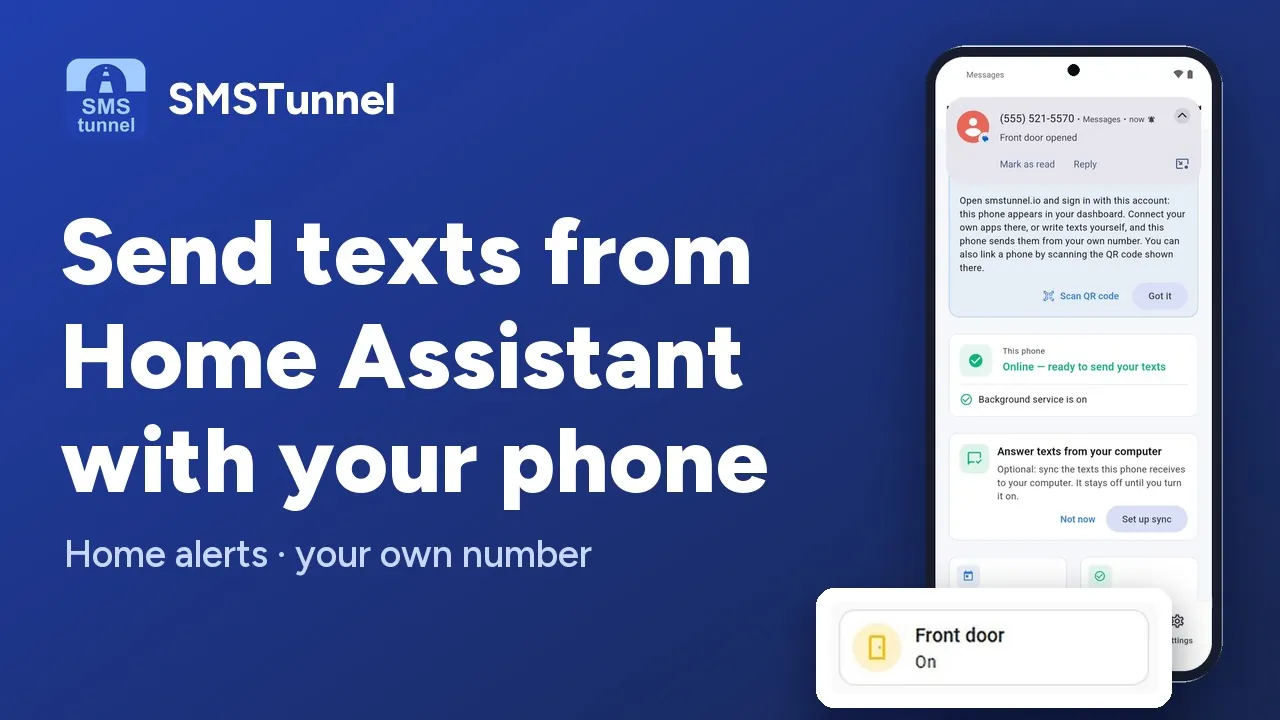 Play the video: Send texts from Home Assistant through your own phone (1:43)
Push notifications from Home Assistant are great until the moment they matter. The phone you carry has no data connection, battery saver is on, or Android quietly killed the companion app, and the alert about the leak under the sink never shows up. A text message doesn’t need any of that: it reaches the phone in your pocket over the mobile network, with or without mobile data.
The SMSTunnel integration gives Home Assistant a notify.smstunnel service. Your automations hand each alert to your SMSTunnel account, and the SMSTunnel app on your Android phone sends it as an ordinary SMS, from your own number, on your own SIM. There is no third-party SMS provider in between and no per-message fee from SMSTunnel; your mobile plan’s SMS rates apply.
This guide goes from zero to four working automations — a water leak, a power cut, a freezer warming up and a door opening while nobody is home — plus the settings that stop a twitchy sensor from texting you all night.
How the pieces fit together
- The phone that sends is an Android phone (Android 7.0 or newer) with a SIM and the SMSTunnel app, online over Wi-Fi or mobile data. A good fit is an old phone that stays at home on the charger: your alerts then reach the phone you carry as a plain text.
- Home Assistant hands the alert to your SMSTunnel account over the internet, and the app on the phone sends it.
- The recipients are the numbers you choose: yours, your partner’s, a neighbour who has a key. Each recipient gets their own text.
One honest limit: Home Assistant and the sending phone both need an internet connection to hand the alert over. If you want texts during a home internet or power outage, give them a backup — mobile data on the phone, and a UPS (or a mobile-data router) for Home Assistant and your router.
Step 1: link a phone and create a key
- Create an account at dashboard.smstunnel.io, or continue with Google or Facebook.
- On the sending phone, install the SMSTunnel app from Google Play, sign in with the same account and turn on the service. The phone appears in your dashboard under Phones; you can also link it by scanning the QR code from Phones → Add phone.
- In the dashboard, open Apps → Add an app, choose Home Assistant and copy the key. It is shown only once. Deleting the app later cuts Home Assistant off.
Send yourself a test from the dashboard with Write a text. If it arrives, the phone side is done. The documentation explains the app’s permissions and its background service.
Step 2: install the integration
The recommended way is HACS:
- In HACS, open the three-dot menu and choose Custom repositories.
- Add
https://github.com/narcisbodea/hass-smstunnelwith the category Integration. - Install SMSTunnel, then restart Home Assistant.
Without HACS, copy the custom_components/smstunnel folder from that repository into your Home Assistant config/custom_components/ folder and restart.
Step 3: add SMSTunnel in Home Assistant
Go to Settings → Devices & Services → Add Integration → SMSTunnel and fill in the form:
| Field | What to enter |
|---|---|
| API key | The key from step 1. It is checked right away, so a wrong key fails now, not at the first real alert. |
| Recipients | One or more numbers, separated by commas, with + and the country code. |
| Server URL | https://smstunnel.io, unless you host SMSTunnel yourself. |
| Default country code | For example +44, so numbers saved without a prefix still work. |
| Device ID | Optional: pins sending to one of your phones. |
These settings can’t be edited later. To change them, remove the integration and add it again.
To test, open Developer tools, call notify.smstunnel with a short message, and wait for the text on your phone. From then on, any automation or script can use it.
Four automations to copy
The examples use the same syntax as the integration’s README. Home Assistant 2024.8 and newer write the call as action: notify.smstunnel instead of service: notify.smstunnel; it is the same service. Replace the entity IDs with your own.
A water leak
The classic case, where minutes cost real money:
automation:
  - alias: "SMS on water leak"
    trigger:
      - platform: state
        entity_id: binary_sensor.basement_water_leak
        to: "on"
    action:
      - service: notify.smstunnel
        data:
          title: "Home Assistant"
          message: "Water leak detected in the basement!"
SMS has no separate title field, so the text arrives as “Home Assistant: Water leak detected in the basement!”.
A power cut
A UPS integration reports when the power goes out. The entity name depends on your UPS; the for: line waits a minute so a short flicker doesn’t text you. Keep the router on the UPS too, or the alert can’t go out.
automation:
  - alias: "SMS when the power goes out"
    trigger:
      - platform: state
        entity_id: binary_sensor.ups_on_battery
        to: "on"
        for: "00:01:00"
    action:
      - service: notify.smstunnel
        data:
          message: "Power cut at home: the UPS is running on battery."
A freezer warming up
Hours of warning instead of a ruined freezer. The message includes the current temperature, and the delay at the end, together with mode: single, allows at most one text an hour:
automation:
  - alias: "SMS when the freezer warms up"
    mode: single
    trigger:
      - platform: numeric_state
        entity_id: sensor.freezer_temperature
        above: -12
        for: "00:15:00"
    action:
      - service: notify.smstunnel
        data:
          message: "Freezer at {{ states('sensor.freezer_temperature') }} °C for 15 minutes."
      - delay: "01:00:00"
The front door opens while nobody is home
This one goes to two people instead of the recipients you saved: target takes one number or a list, and replaces the saved recipients for that call only. The condition uses the home zone, whose state is the number of people at home.
automation:
  - alias: "SMS when the front door opens and nobody is home"
    trigger:
      - platform: state
        entity_id: binary_sensor.front_door
        to: "on"
    condition:
      - condition: state
        entity_id: zone.home
        state: "0"
    action:
      - service: notify.smstunnel
        data:
          message: "The front door just opened and nobody is home."
          target:
            - "+447700900123"
            - "+447700900456"
For a single call you can also pick another phone or country code, under the service’s own data:
service: notify.smstunnel
data:
  message: "Test from the phone in the garage"
  data:
    device_id: "your-phone-id"
    default_country_code: "+44"
Keep a twitchy sensor from texting you all night
A sensor that flips between on and off can fire an automation dozens of times in a few minutes, and every run is a text. That burns through your allowance and tries your carrier’s patience. Three habits prevent it:
- Add
for:to the trigger, so the state must hold for a while before anything is sent. - Add a condition that only lets the alert through when it matters, like the empty-house check above.
- Add a cooldown with
mode: singleand adelayat the end, as in the freezer example.
The numbers to keep in mind: the Free plan sends 25 texts a day and 500 a month exactly as written, and up to 25 more a day end with a short “free by smstunnel.io” line. Paid plans start at $9 a month, with higher daily limits; see pricing. On every plan, SMSTunnel accepts 30 send requests a minute.
When something goes wrong
The integration is built so that one problem doesn’t hide another:
- Errors go to the Home Assistant log, not to the automation, so the rest of the automation still runs.
- One failed recipient doesn’t block the others: the remaining texts still go out.
- Past 30 requests a minute, the text is not sent and the log says so plainly. There is no automatic retry.
- Texts longer than 1600 characters are cut before sending, rather than refused.
- If the sending phone is offline, the text waits in your account and goes out when the phone is back.
Removing the integration stops notify.smstunnel at once, without a restart, and deleting its app in the dashboard stops the key.
Common questions
Which number do the alerts come from?
From the SIM in the phone that runs the SMSTunnel app. Recipients can save it as “Home” and recognise it at a glance.
Can people reply?
Yes. Replies reach the sending phone like any other text, and with sync turned on in the app you can read them in your dashboard too. The integration itself only sends.
Does Home Assistant need to be reachable from the internet?
The integration calls SMSTunnel from Home Assistant, so Home Assistant needs a way out to the internet. It doesn’t need to accept connections from outside.
Is there an alternative without Home Assistant?
For servers and monitoring tools, the guide to monitoring alerts by SMS covers Uptime Kuma, Grafana and Zabbix. For other workflows, n8n works the same way. Everything about the integration itself is on the Home Assistant integration page.
See also
More from the blog
Try it with your own phone
Install the Android app, sign in, and your own software can send its first text in a few minutes. The Free plan needs no credit card.